Malware Analysis Lab Set-up
Build a Malware Analysis Lab.

Introduction
You will need two virtual machines to perform proper malware analysis. The first machine will be Windows 11 Enterprise Evaluation to collect host-based artifacts. We’ll install FlareVM by Mandiant on top of the Windows installation. The second machine will be REMNux to collect network-based indicators. Both machines run on an internal network adapter, allowing inter-VM communication while protecting your host network from malware detonation. This guide uses VirtualBox.
Purpose of this lab: Hands-on malware analysis requires isolated, controlled environments. This lab provides a safe sandbox for detonating samples, analyzing behavior, and capturing network/host artifacts without risking production systems or alerting C2 servers.
This guide does NOT include VirtualBox installation. Please refer to Oracle documentation.
Links
https://academy.tcm-sec.com/p/practical-malware-analysis-triage
https://www.virtualbox.org/wiki/Downloads
https://www.microsoft.com/en-us/evalcenter/evaluate-windows-11-enterprise
https://docs.remnux.org/install-distro/get-virtual-appliance
Process
Windows 11 Enterprise
Note: Steps may vary based on host machine
Download a copy of the Windows 11 Enterprise Evaluation Edition from the Microsoft website.
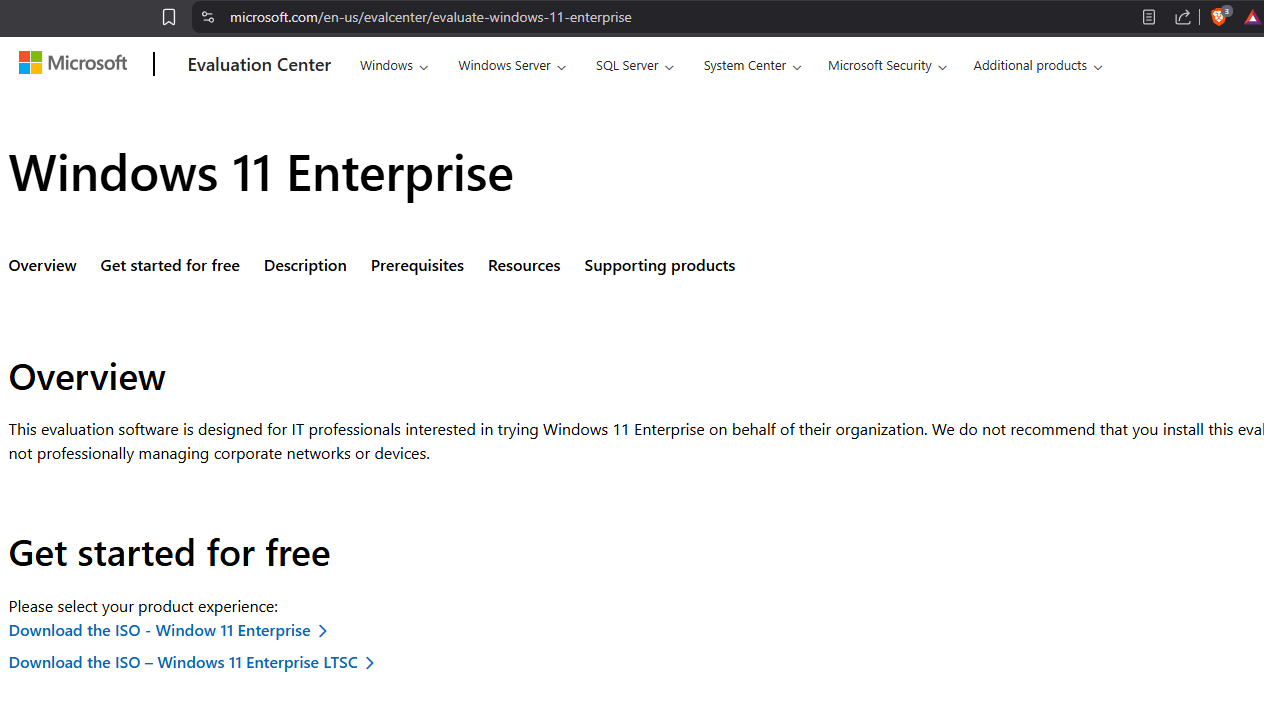
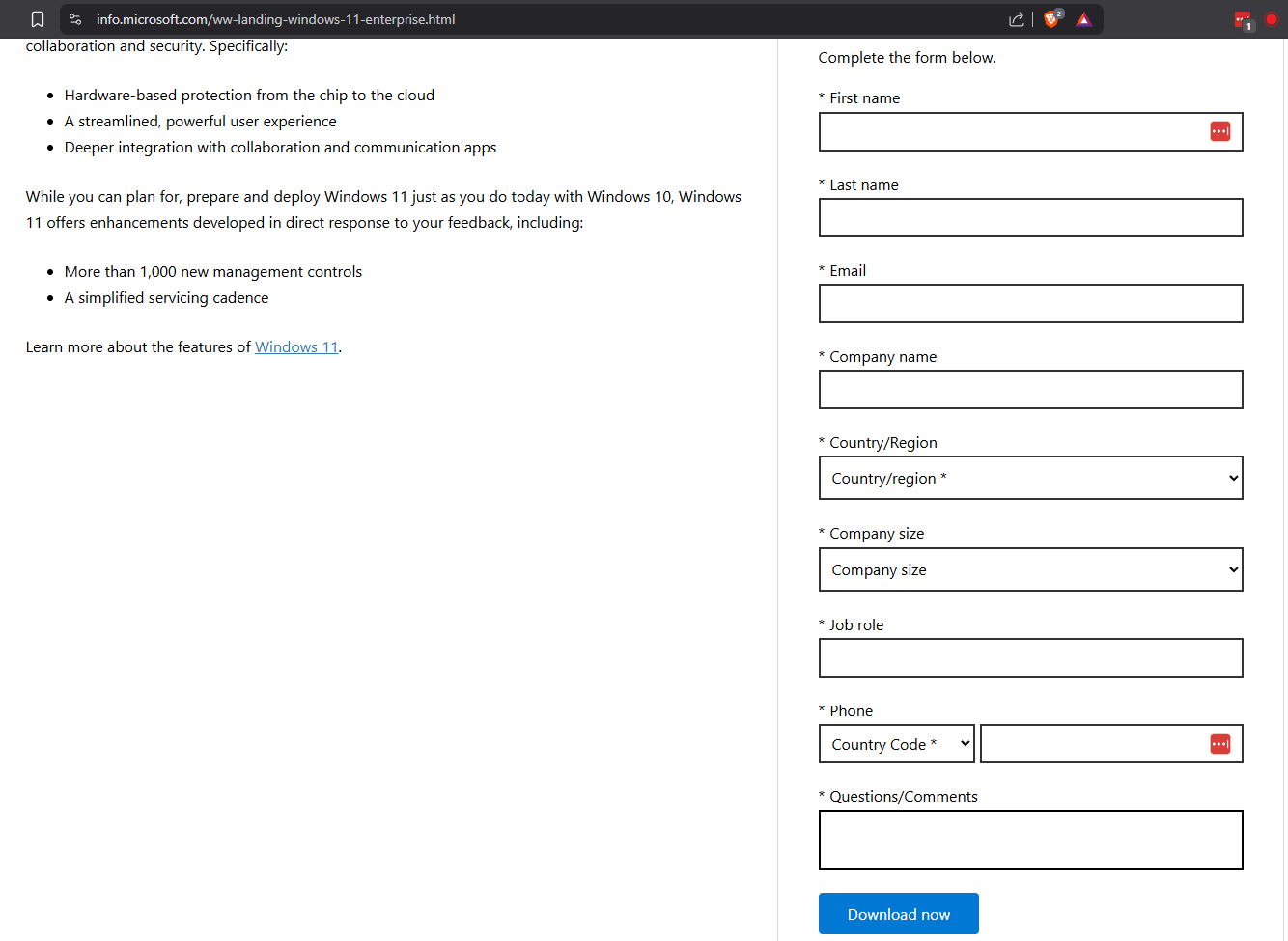
Fill out the form with information. They don’t verify the information.
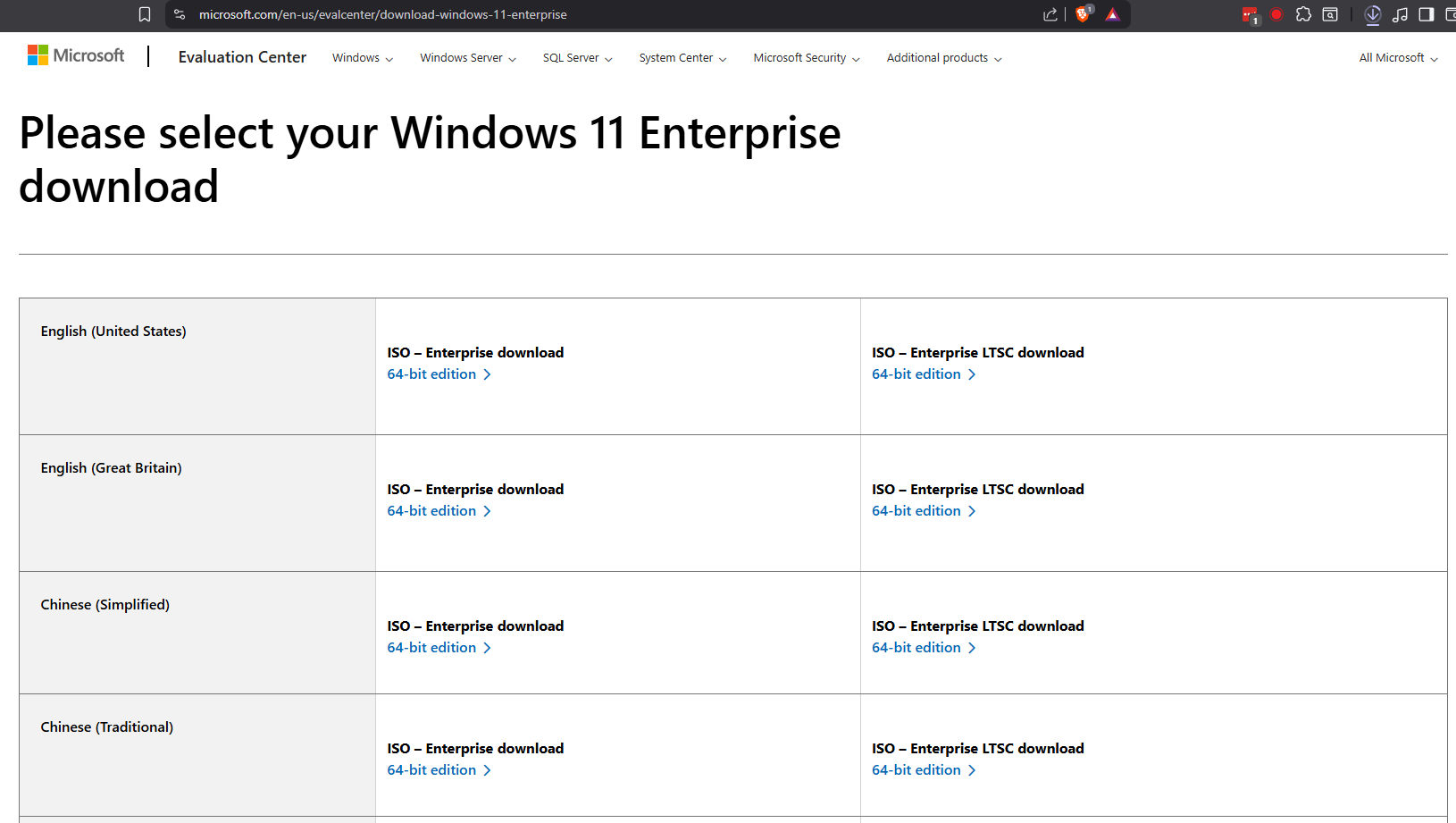
Choose the appropriate ISO version and save it to your system.
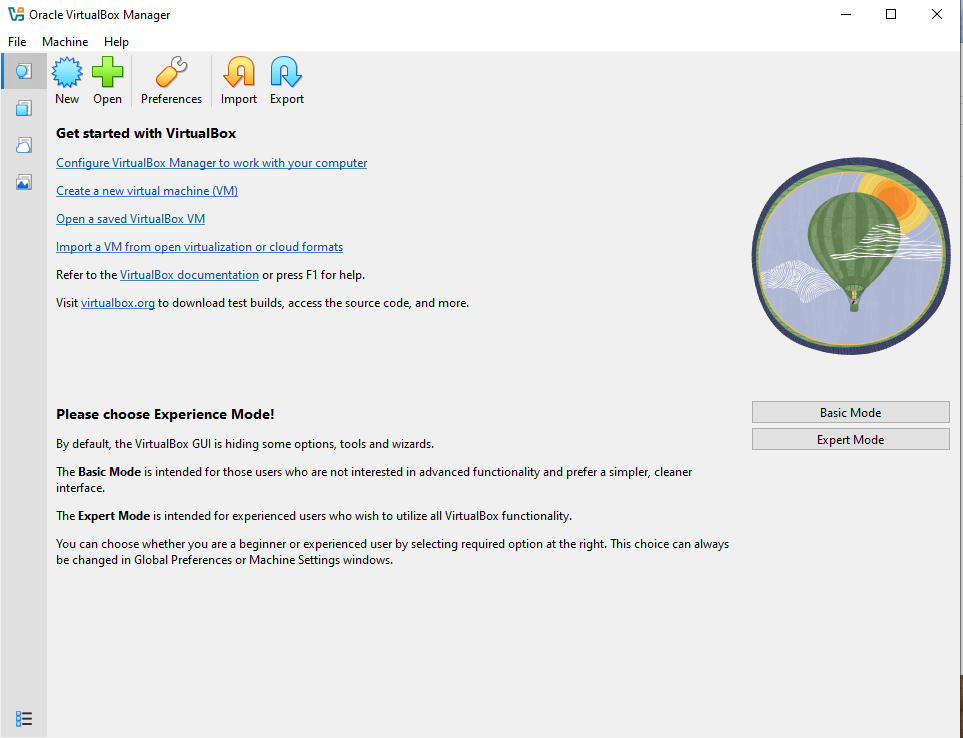
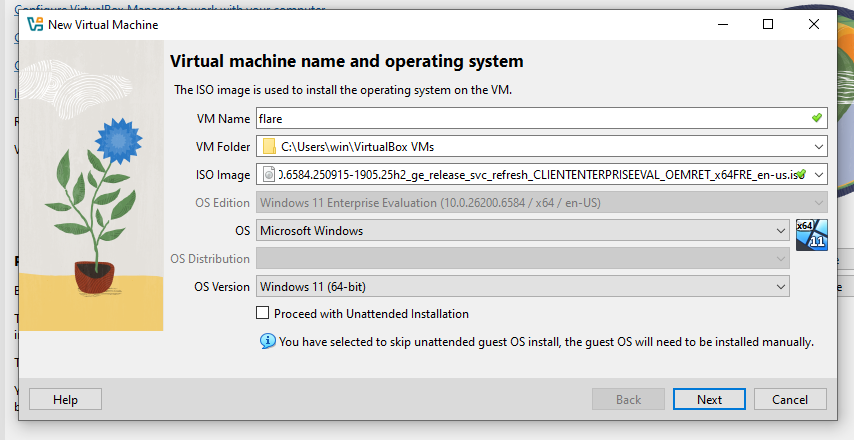
Click New at the top of the Virtualbox interface.
Choose a machine name with flare or some other identifiable name. Choose the Windows 11 ISO that was just downloaded. De-select unattended installation. Click Next.
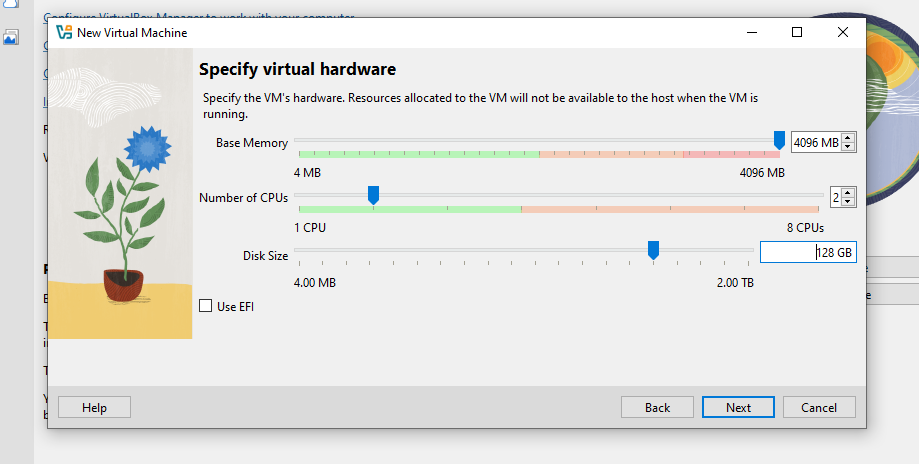
Set the memory to 4GB and keep the CPUs to 2. Set the Disk to a size greater that 60GB or the FlareVM installer will complain. I like to use 128GB.
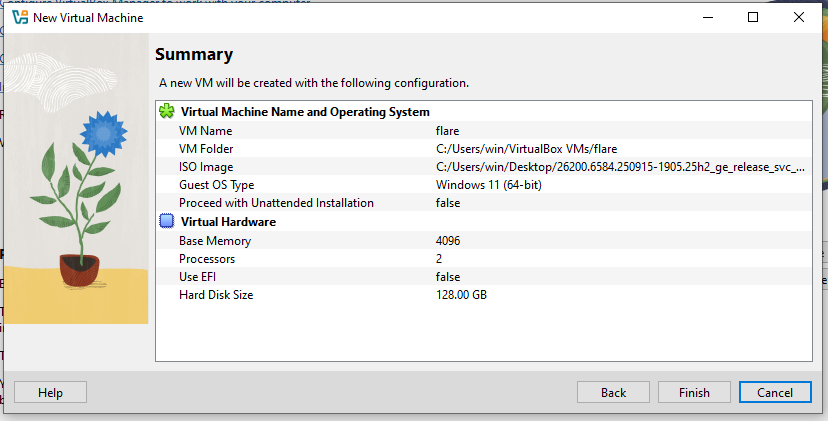
Click Finish to end the set-up process.
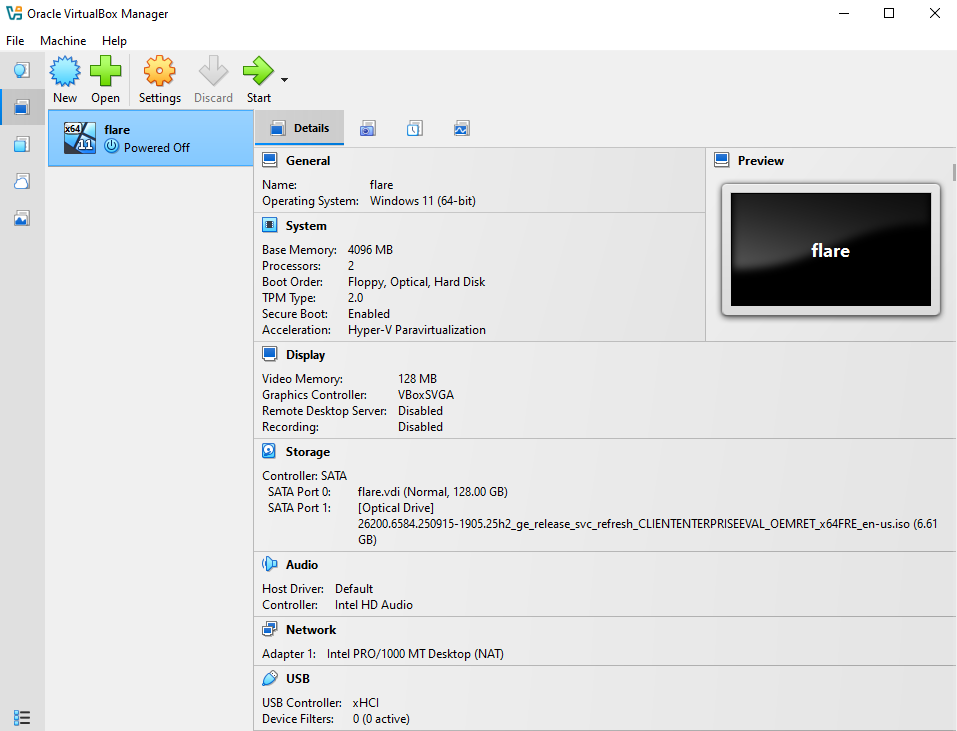
Boot up the virtual machine that was just created.
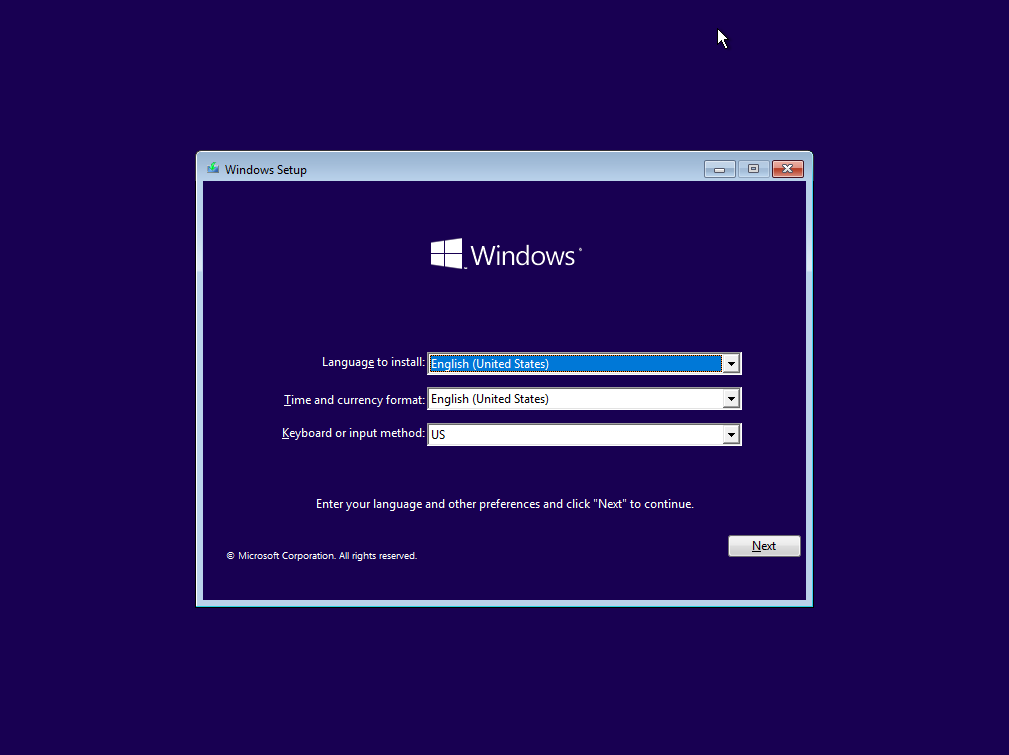
Click Next on the Windows set-up screen.
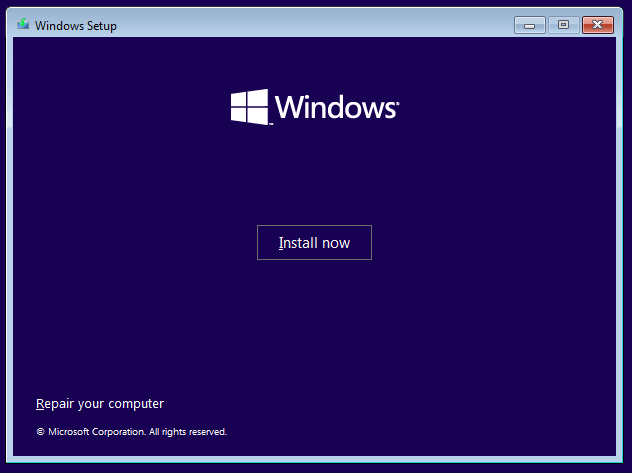
Click Install Now to start the intallation process.
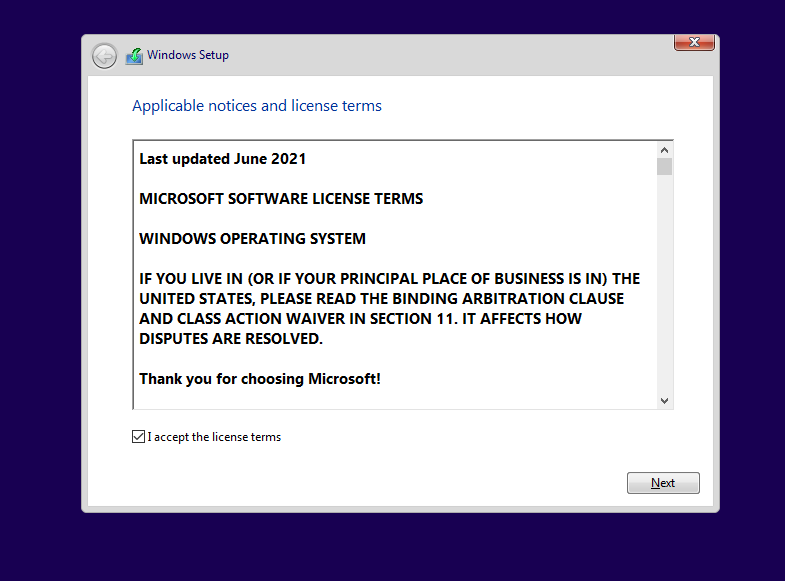
Accept the license terms and then click Next.
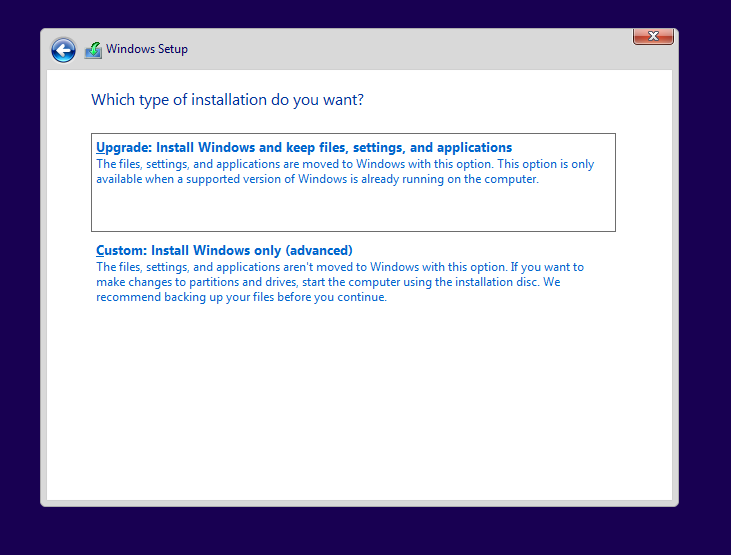
Click to choose the Custom install option.
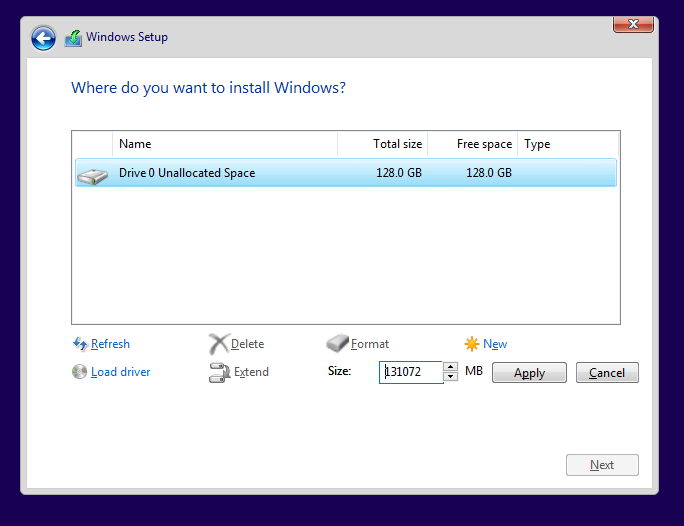
Click the New and then click the Apply button.
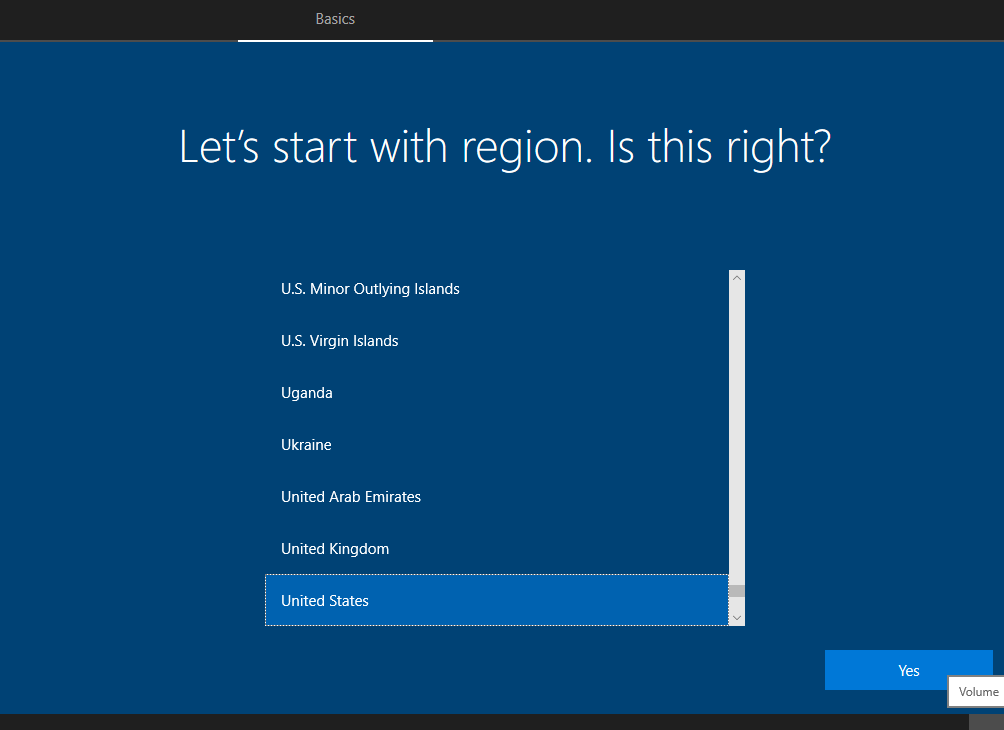
Choose your Region.
Select the Keyboard. Skip the second layout.
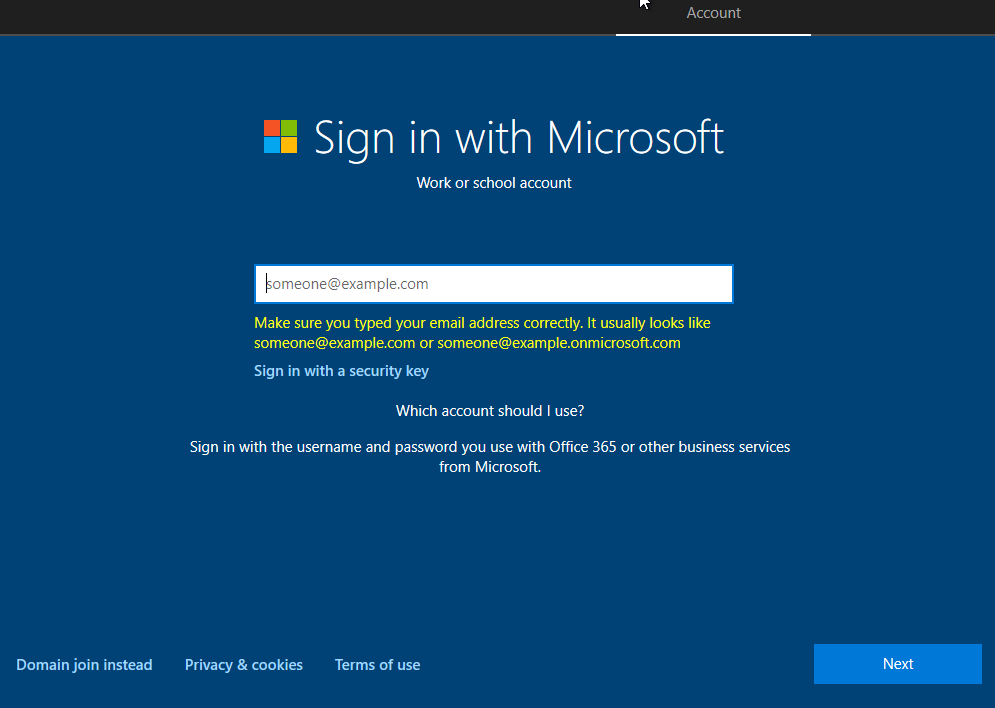
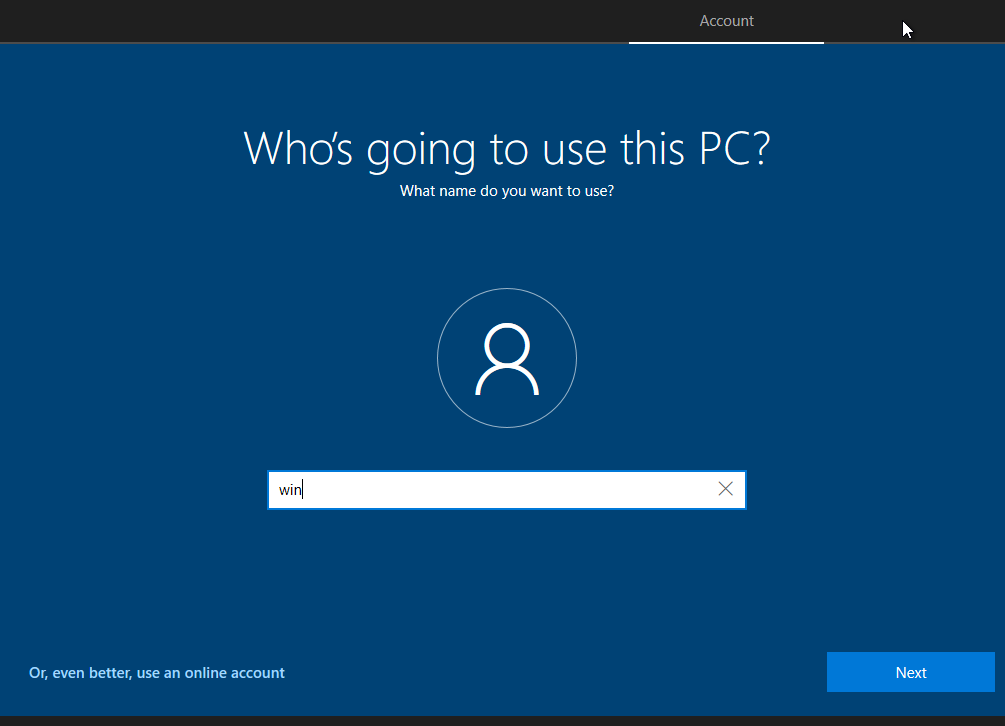
Choose a username and click Next.
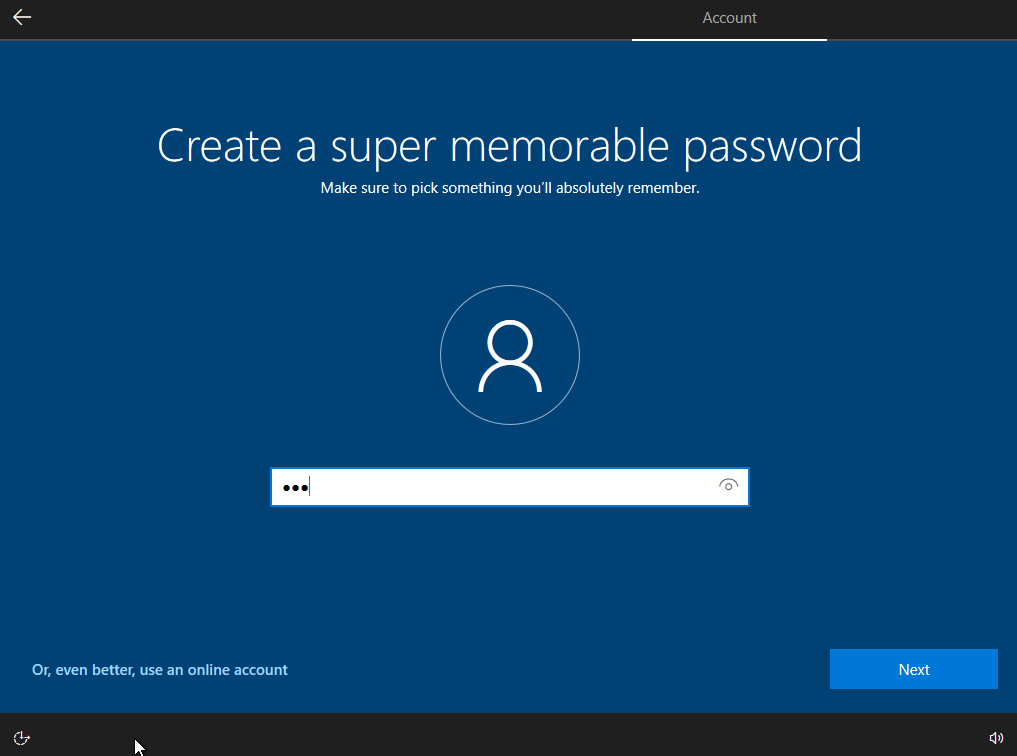
Choose a password. Click Next. Re-enter the password.
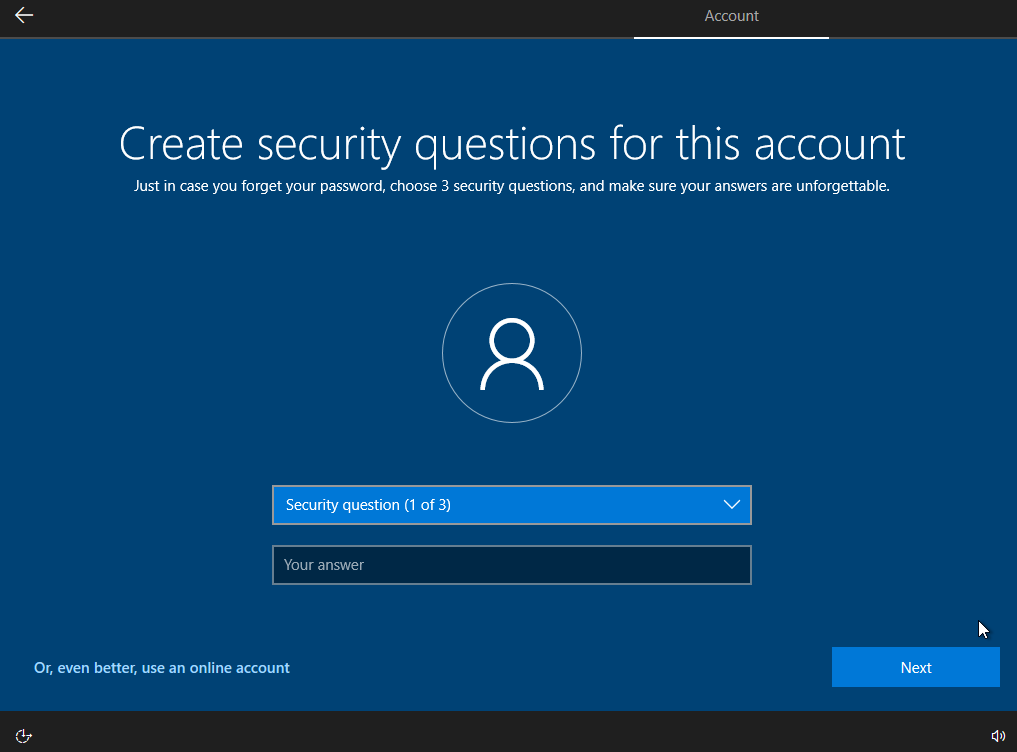
Choose three security questions and their answers.
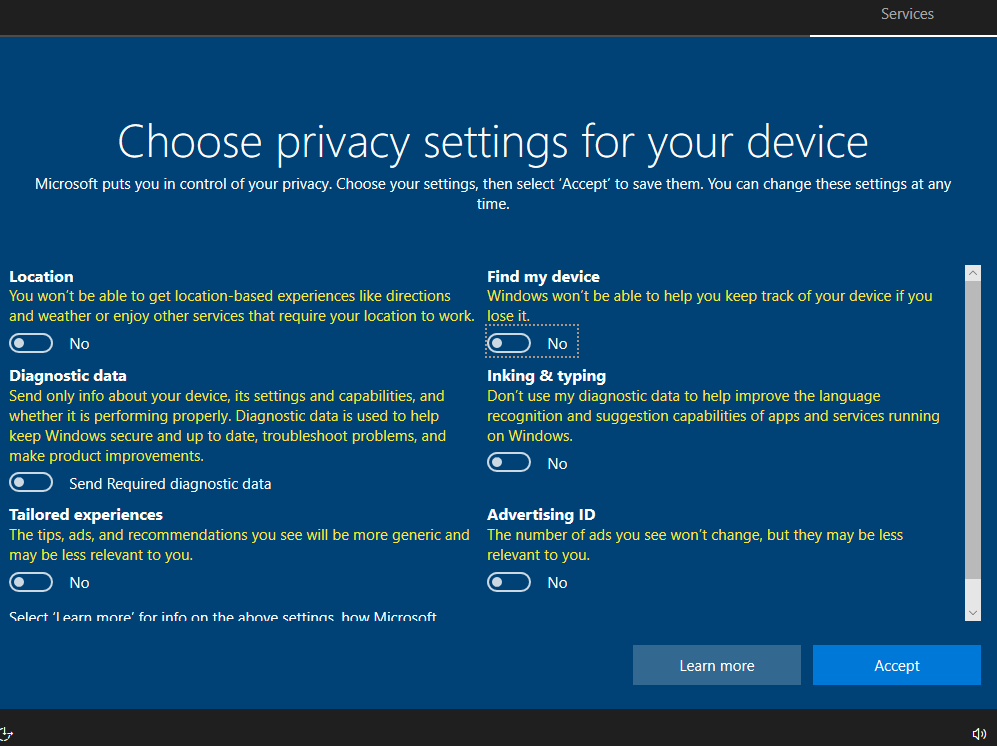
Turn off all the tracking type of options. Select Not Now for the Cortana option.
Wait for it to finish installing and repeat the network option from above to turn the networking back on. For the pop-up box click on all the continues and Coninue Without Data until it goes away.

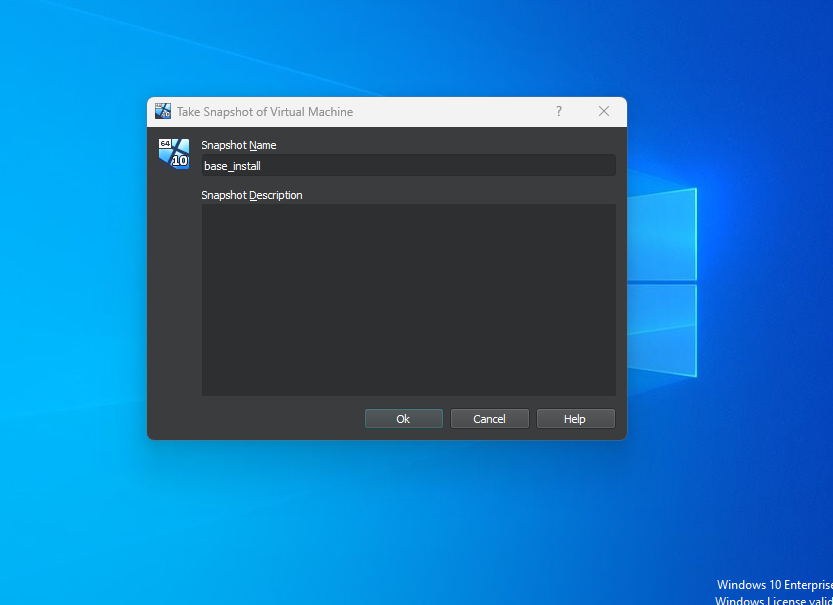
Create an image of the base install as starting point if anything goes wrong.
Install Google Chrome. This is optional.

https://www.google.com/intl/en_au/chrome/
Insert the Guest Additions cd into the virtual machine.
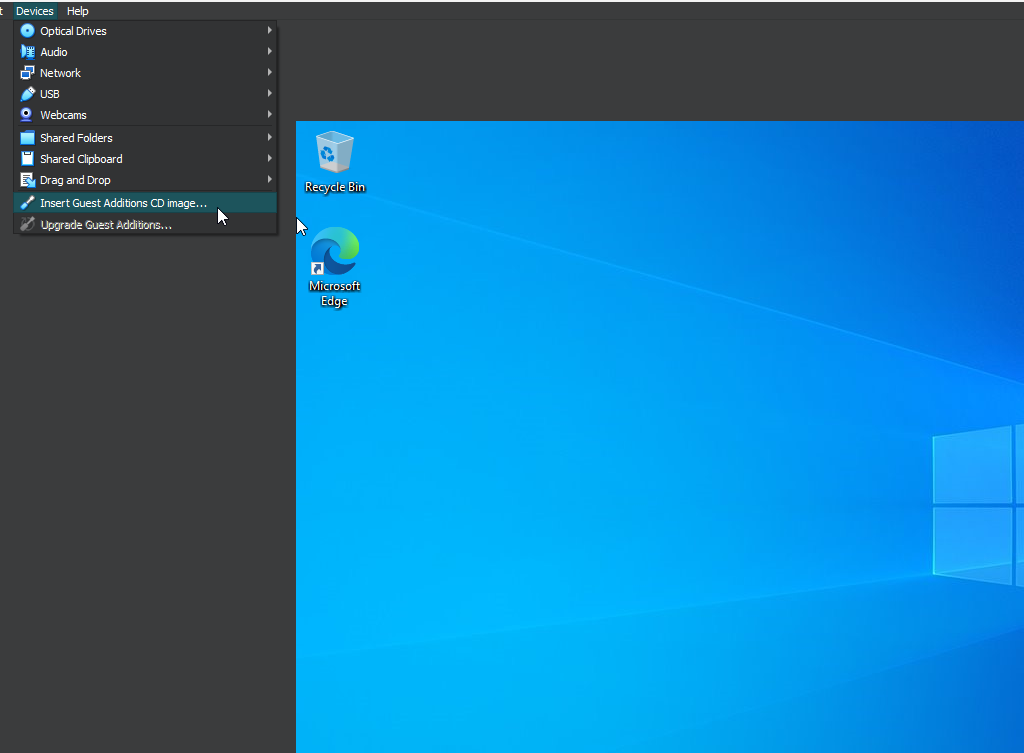
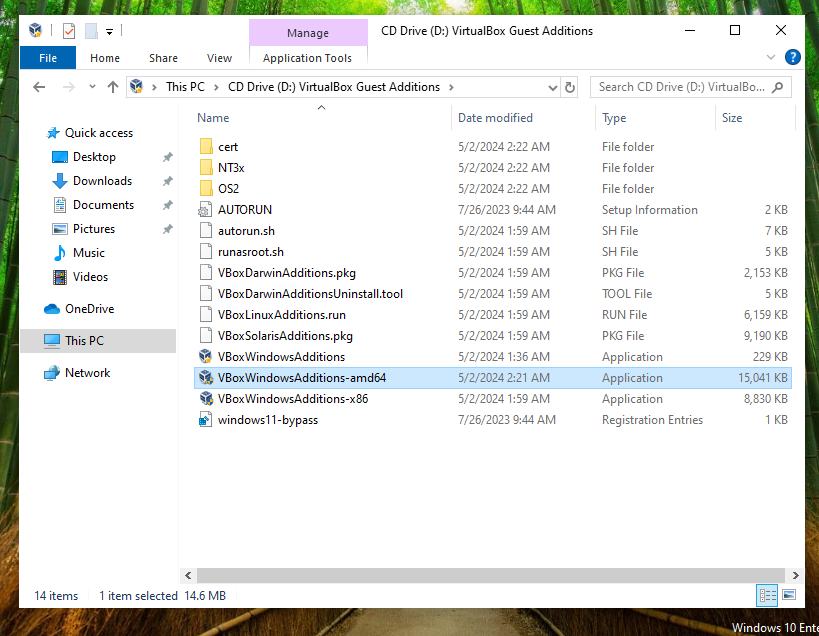
Double-click on the amd64 version of the tools. Follow all of the prompts and restart the machine.
Research the FlareVM GitHub. This will have the procedures for pre-installation and installation.
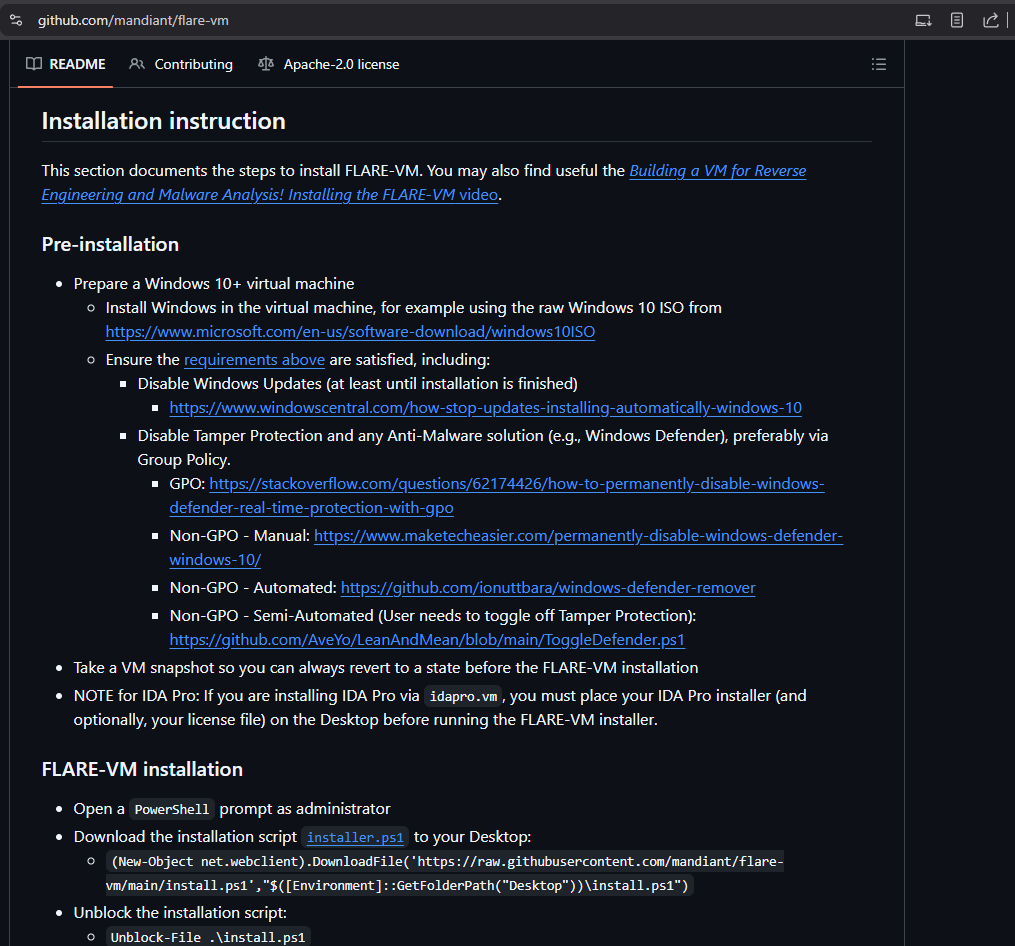
https://github.com/mandiant/flare-vm
Disable in Tamper Protection in Windows Security. Disable all of the other security protections.
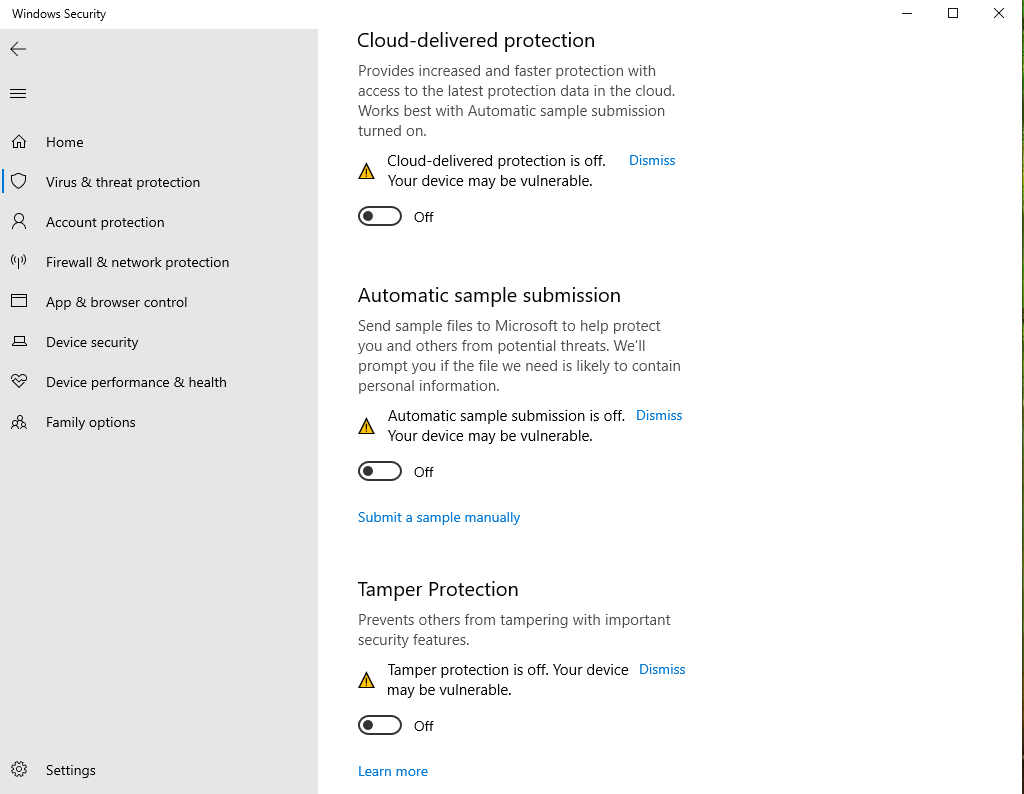
https://www.maketecheasier.com/permanently-disable-windows-defender-windows-10/
Disable Windows Defenders in the Group Policy Objects (GPO) so it is permanently disabled.
- Open `gpedit.msc` in the run box.
- Navigate to `Computer Configuration > Administrative Templates > Windows Components > Microsoft Defender AntiVirus`.
- Enable the `Turn off Microsoft Defender Antivirus` option.
- Navigate to `Computer Configuration > Administrative Templates > Network > Windows Defender Firewall > Domain Profile`.
- Disable the `Windows Defender Firewall: Protect all network connections` option.
- Navigate to `Computer Configuration > Administrative Templates > Network > Windows Defender Firewall > Standard Profile`.
- Disable the `Windows Defender Firewall: Protect all network connections` option.
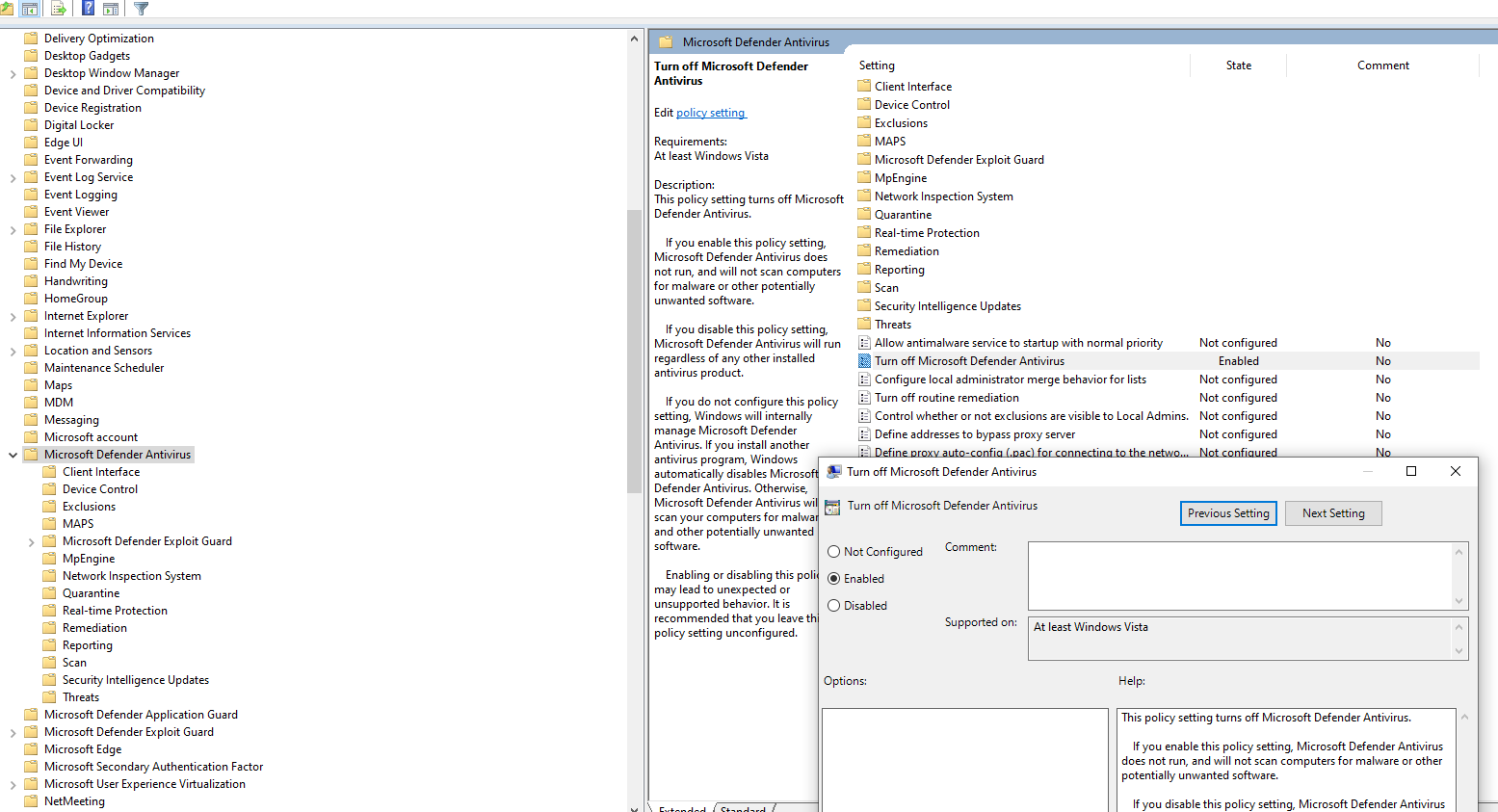
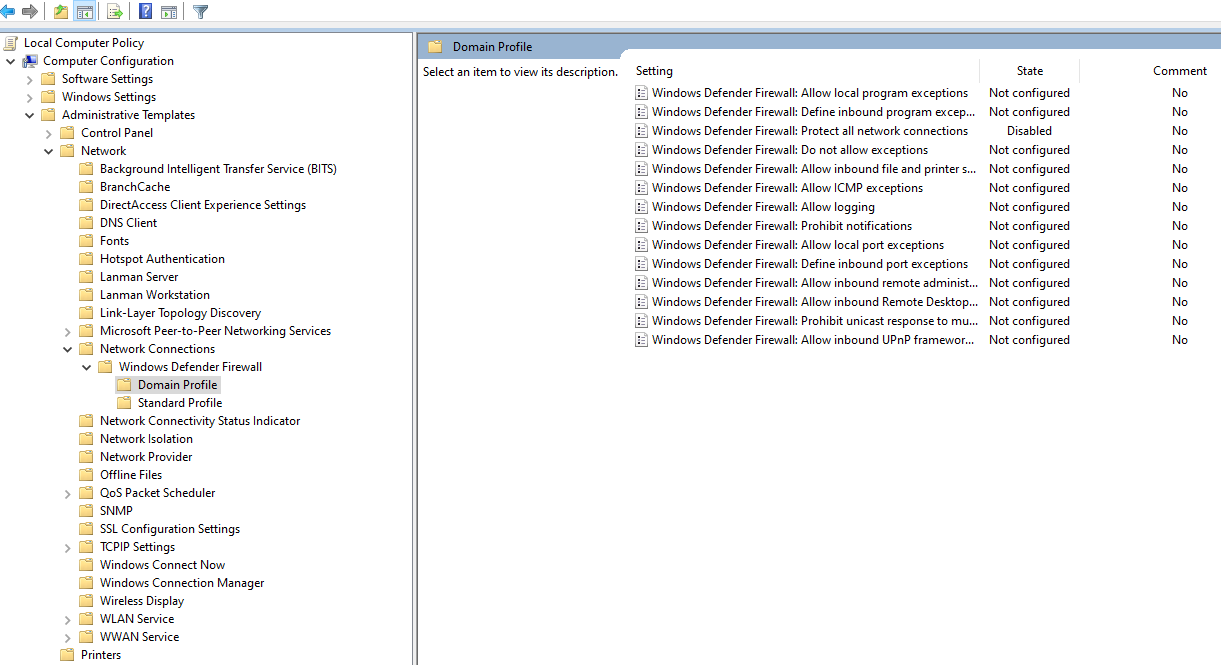
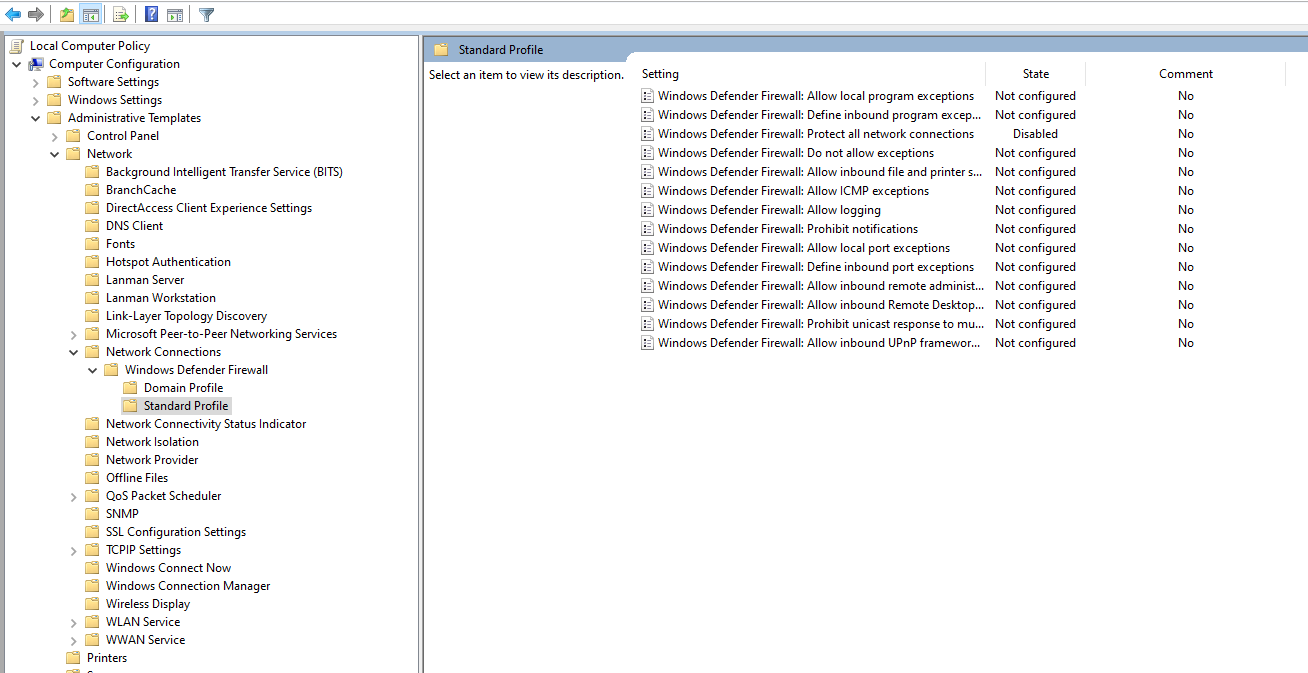
Create another snapshot. This will give a restore point incase anything goes wrong during the FlareVM installation.
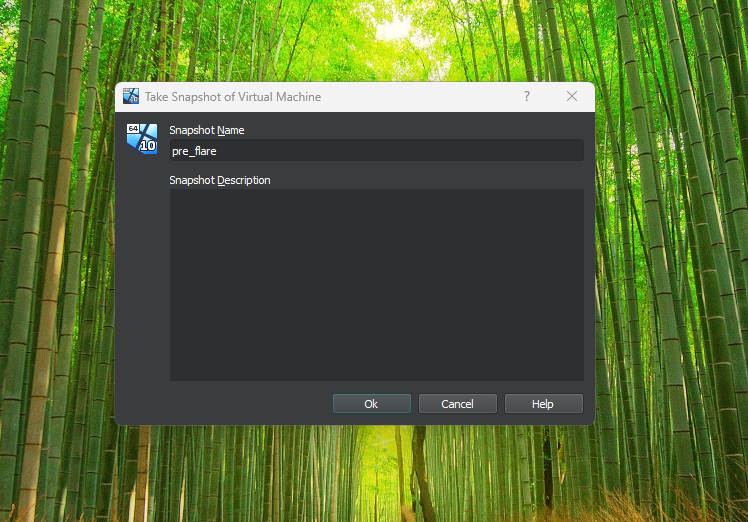
Follow the steps listed in the GitHub FLARE-VM installation.
- Open a PowerShell terminal. Choose Run as Administrator.
- Download the installer.ps1 installation script to the Desktop.
- Ublock the script. Microsoft has security regarding ransomly downloaded scripts.
- Set the execution policy to unrestricted to enable script execution.
- Execute the install script. Pass a config file if you have one.
(New-Object net.webclient).DownloadFile('https://raw.githubusercontent.com/mandiant/flare-vm/main/install.ps1',"$([Environment]::GetFolderPath("Desktop"))\install.ps1")
Unblock-File .\install.ps1
.\install.ps1
.\install.ps1 -customConfig "https://raw.githubusercontent.com/mandiant/flare-vm/main/config.xml"
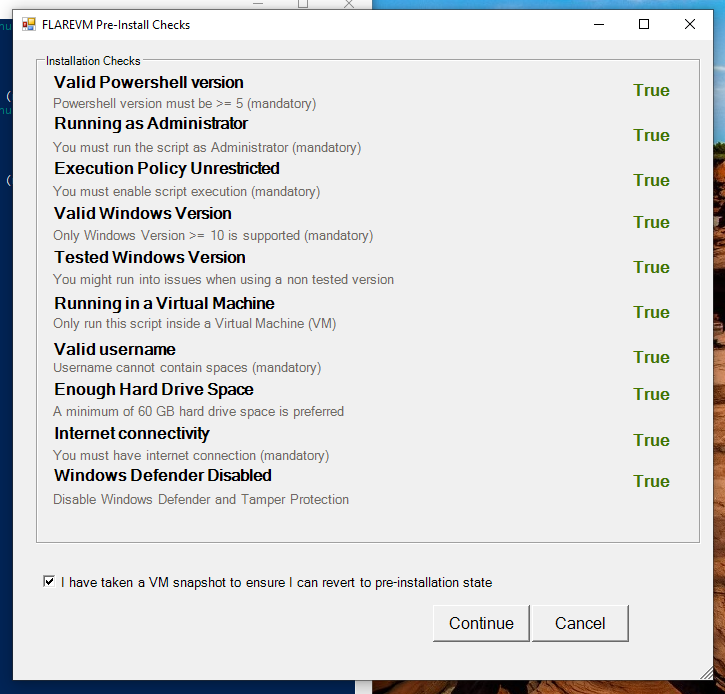
Check the options and click Continue.
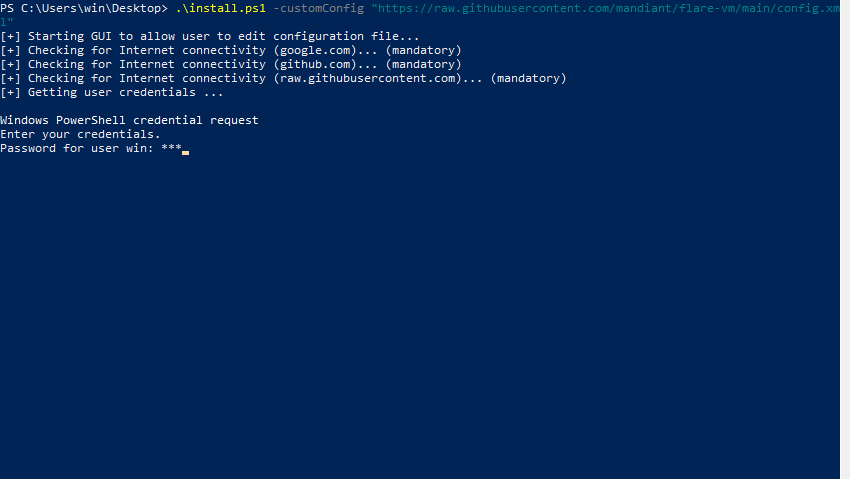
Enter the user password.
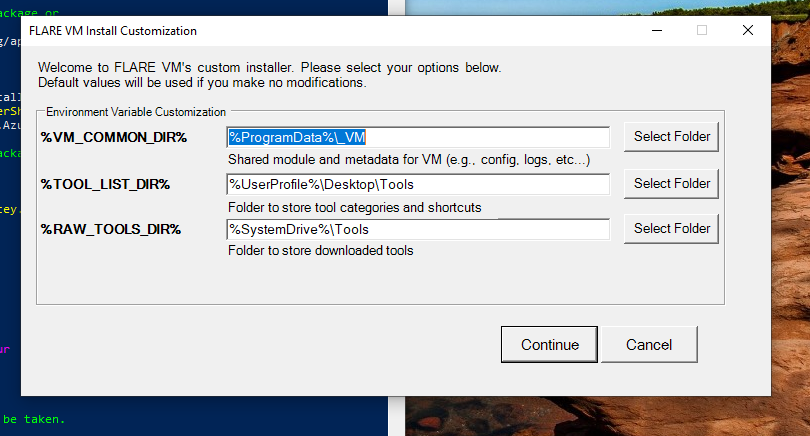
Check the install folders and click Continue.
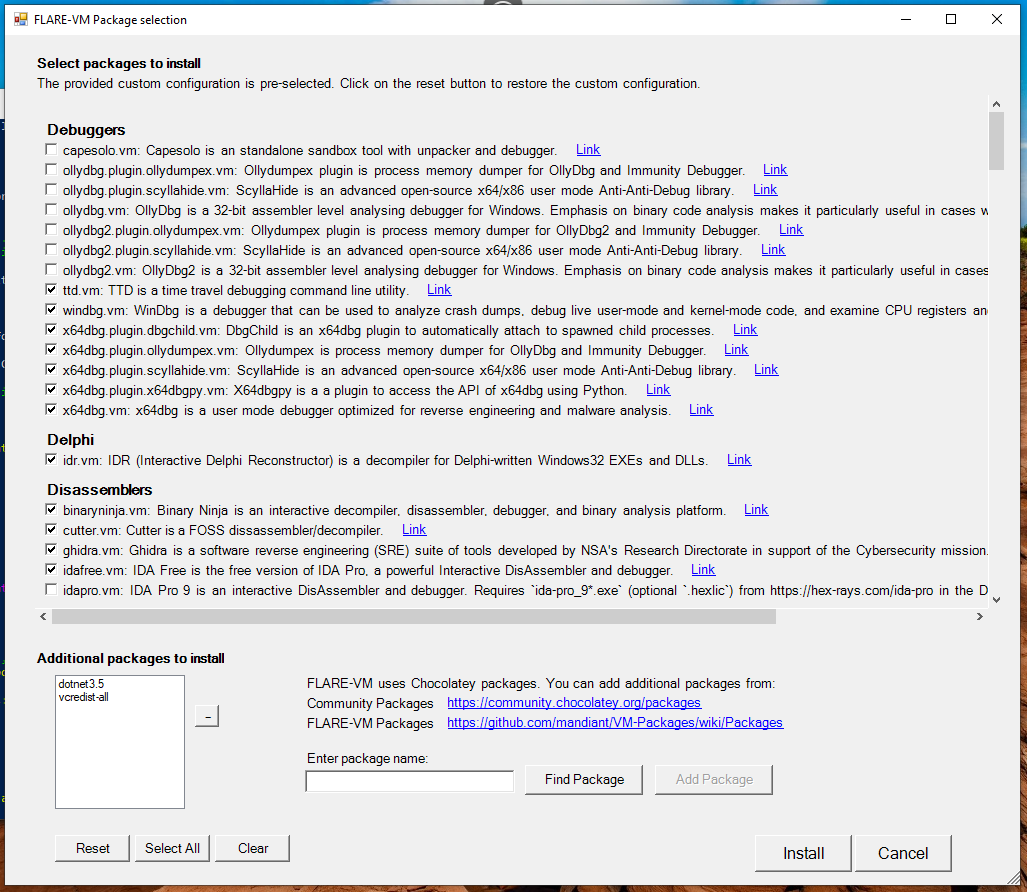
Check the program install programs. Click Install.
Eventually, the installation will complete and produce a summary text. Feel free to review it.

Sysinternals might also need to be downloaded. Feel free to download it if you need it.
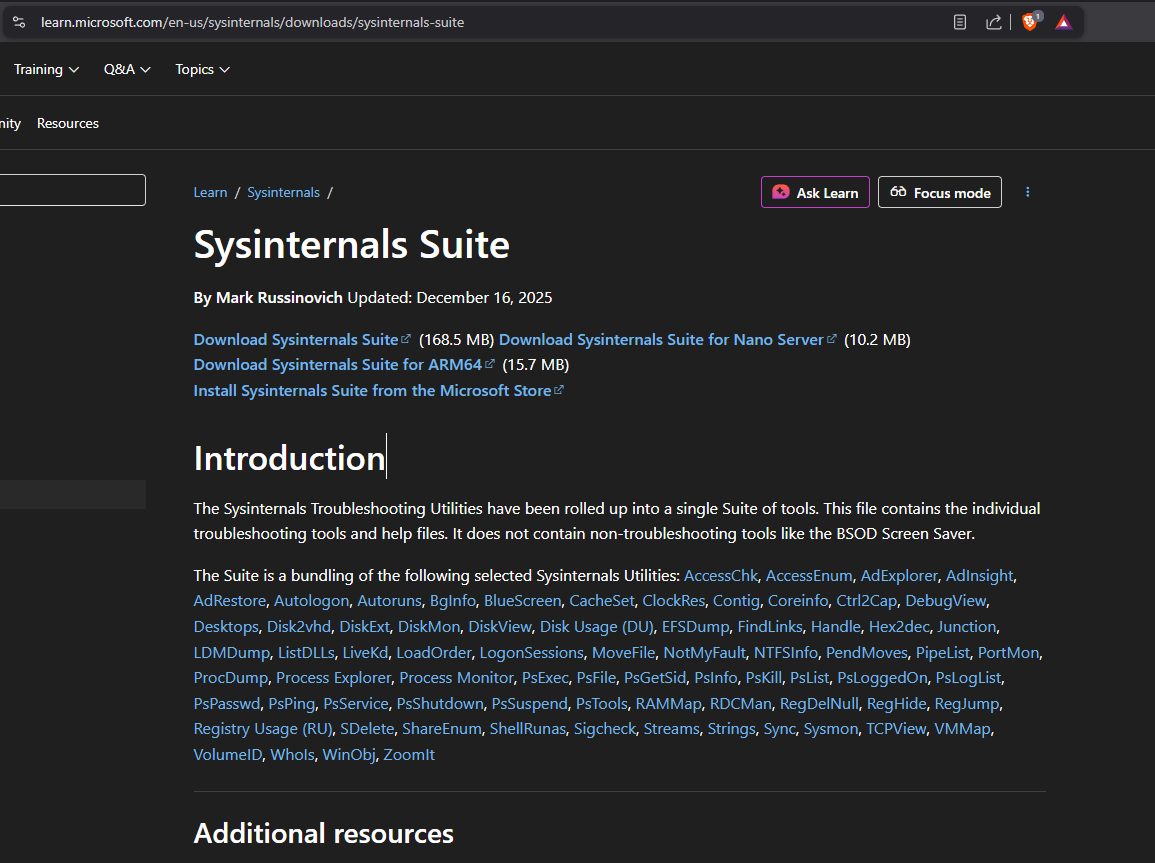
https://learn.microsoft.com/en-us/sysinternals/downloads/sysinternals-suite
Process Hacker 2/System Informer might also need to be download. Feel free to download it if you need it.
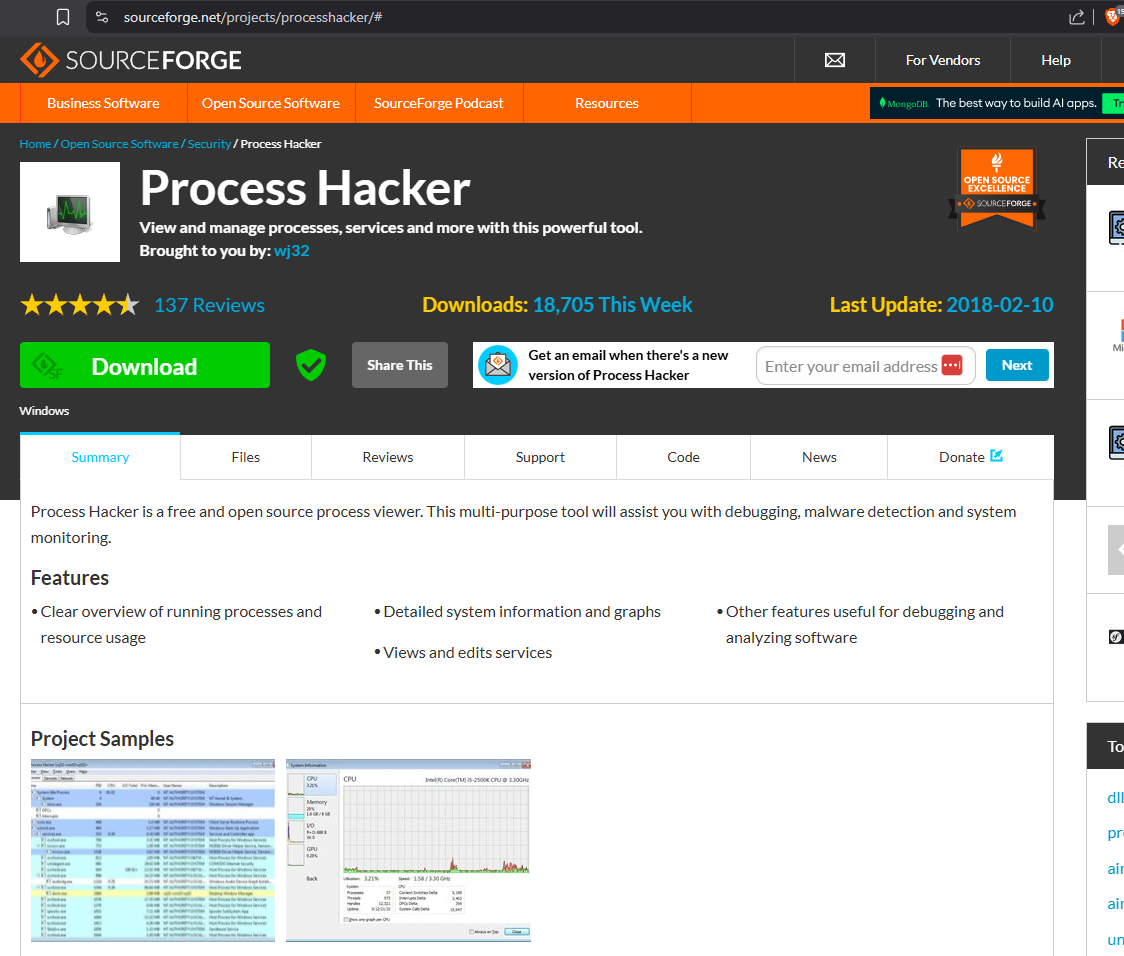
https://sourceforge.net/projects/processhacker/
Create a post install snapshot.
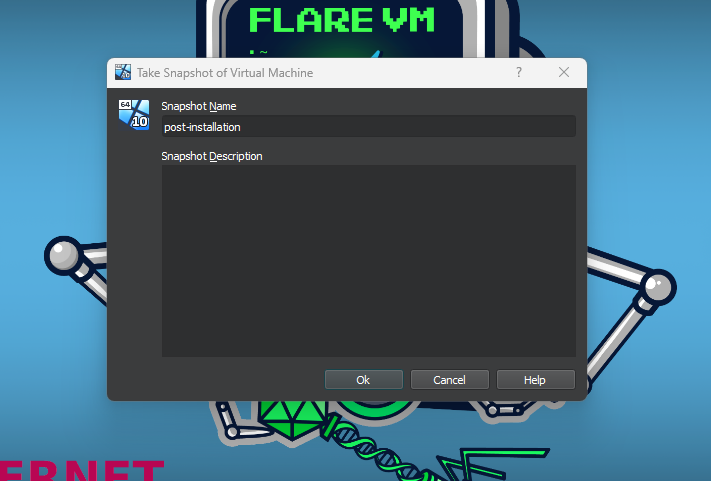
Power down the virtual machine. Time to set-up REMNux.
REMNux Linux
Download a copy of the ISO from the REMNux Official Website.

Choose Import on the Virtualbox interface.
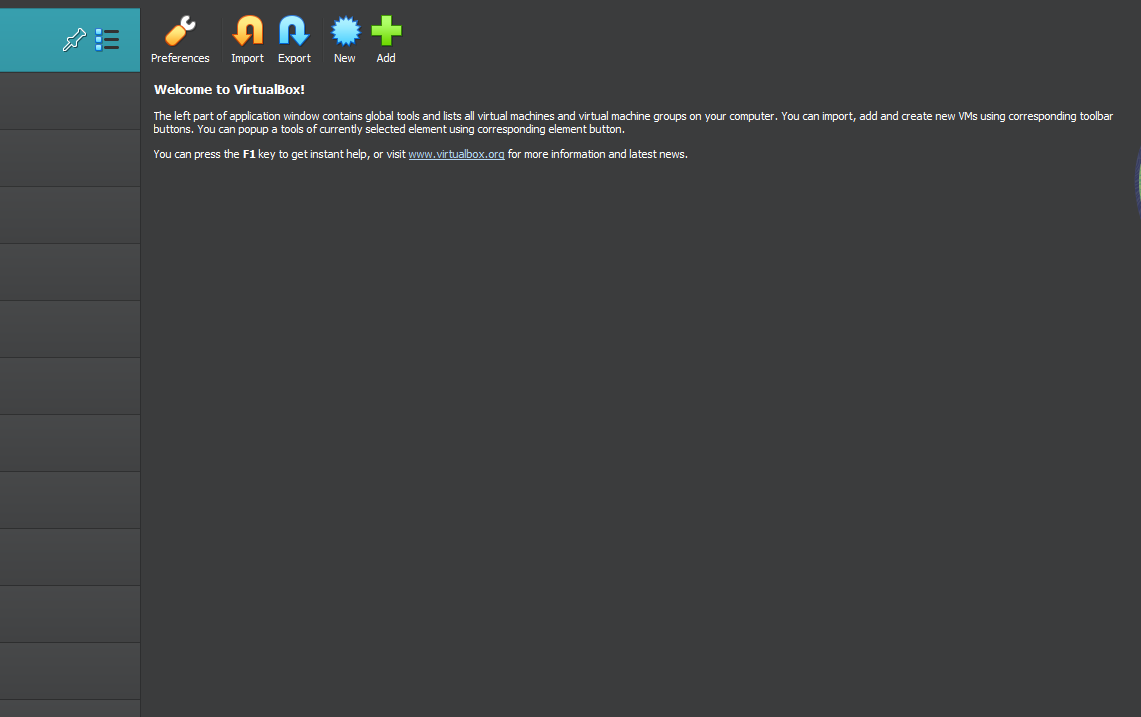
Choose the REMNux .ova file that was just downloaded. Click Finish.
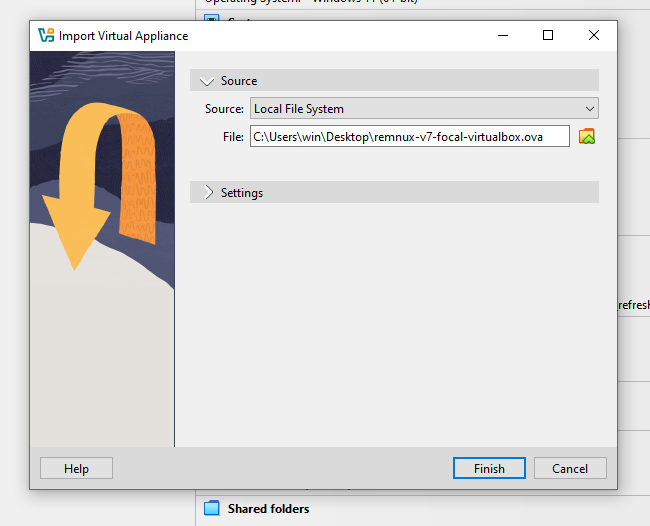
Boot up the new virtual machine.
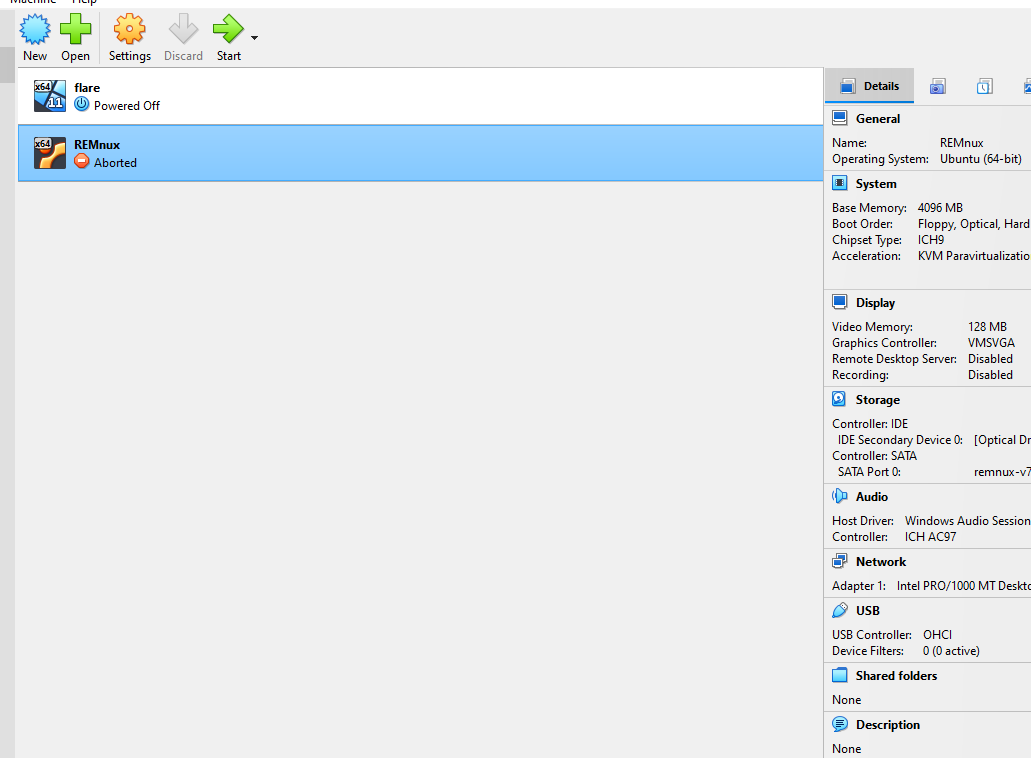
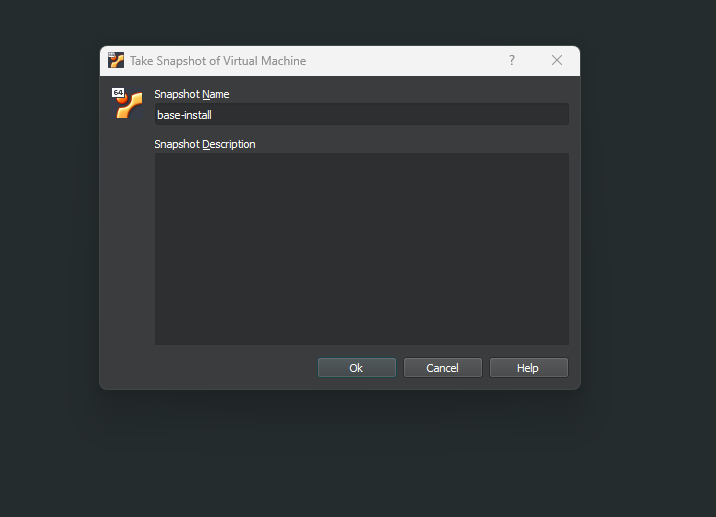
Create a base install snapshot.
Power down both machines and prepare to fix the networking.
Networking
Open the settings menu. From the settings menu switch to the Network tab. Check all of the Adapter tabs — there should only be one adapter enabled. For the enabled adapter, change the “Attached to:” drop-down to Internal Network. Change the “Name:” to the same name for both machines. Expand the Advanced section. Update the “Promiscuous Mode:.” For the purposes of this lab, choose Allow VMs.
The choice between “Allow VMs” and “Allow All” depends on your analysis needs:
| Setting | When it works | When you need more |
| Allow VMs | Basic lab exercises, communication between Windows → REMnux | Cannot see unsolicited frames, raw scanning, or C2 attempts outside the lab VM IPs |
| Allow All | Full visibility of all traffic on the internal network | Complete malware network analysis, IDS-style capture, forensic lab work |
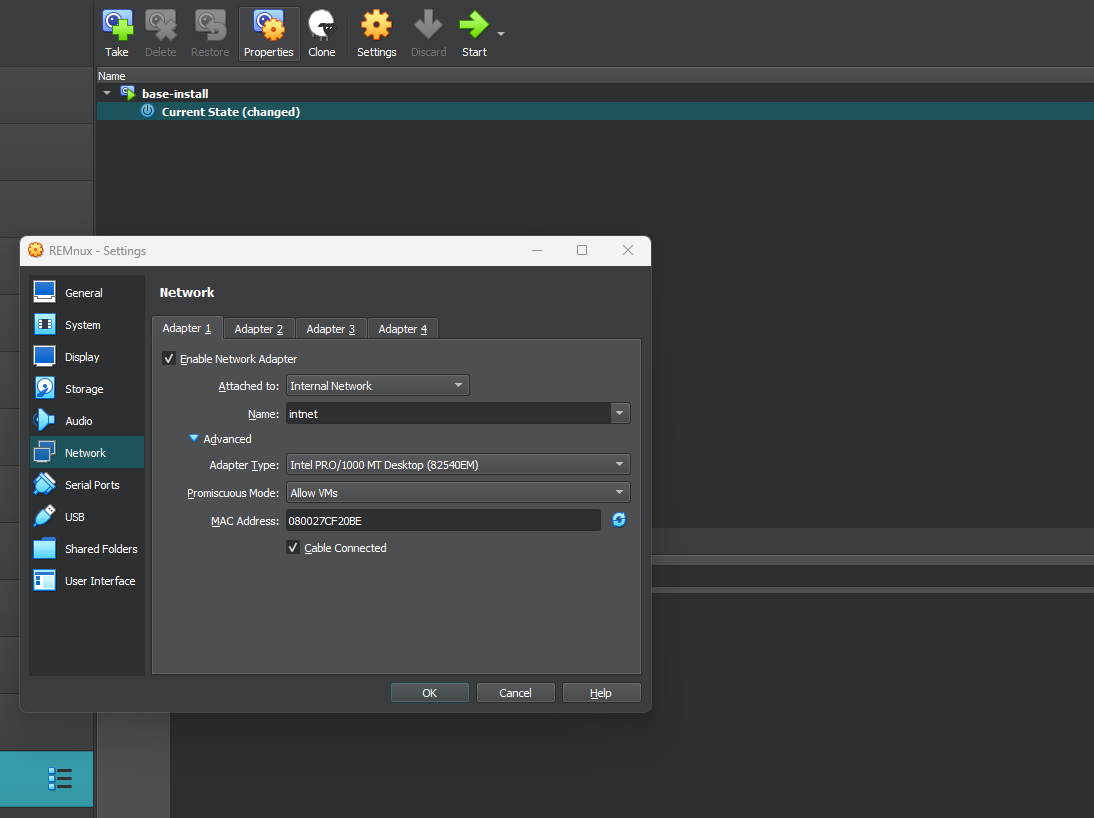
REMNux
Boot up the machine. Update the 01-netcfg.yaml file to specify the ip address.
remnux@remnux:~$ cat /etc/netplan/01-netcfg.yaml
# This file describes the network interfaces available on your system
# For more information, see netplan(5).
network:
  version: 2
  renderer: networkd
  ethernets:
    enp0s3:
      addresses:
        - 10.0.0.3/24
Apply the new netplan.
remnux@remnux:~$ sudo netplan apply
Check the IP address to see if we can see the new IP address.
remnux@remnux:~$ ip a
1: lo: <LOOPBACK,UP,LOWER_UP> mtu 65536 qdisc noqueue state UNKNOWN group default qlen 1000
    link/loopback 00:00:00:00:00:00 brd 00:00:00:00:00:00
    inet 127.0.0.1/8 scope host lo
       valid_lft forever preferred_lft forever
    inet6 ::1/128 scope host
       valid_lft forever preferred_lft forever
2: enp0s3: <BROADCAST,MULTICAST,UP,LOWER_UP> mtu 1500 qdisc fq_codel state UP group default qlen 1000
    link/ether 08:00:27:cf:20:be brd ff:ff:ff:ff:ff:ff
    inet 10.0.0.3/24 brd 10.0.0.255 scope global enp0s3
       valid_lft forever preferred_lft forever
    inet6 fe80::a00:27ff:fecf:20be/64 scope link
       valid_lft forever preferred_lft forever
Windows
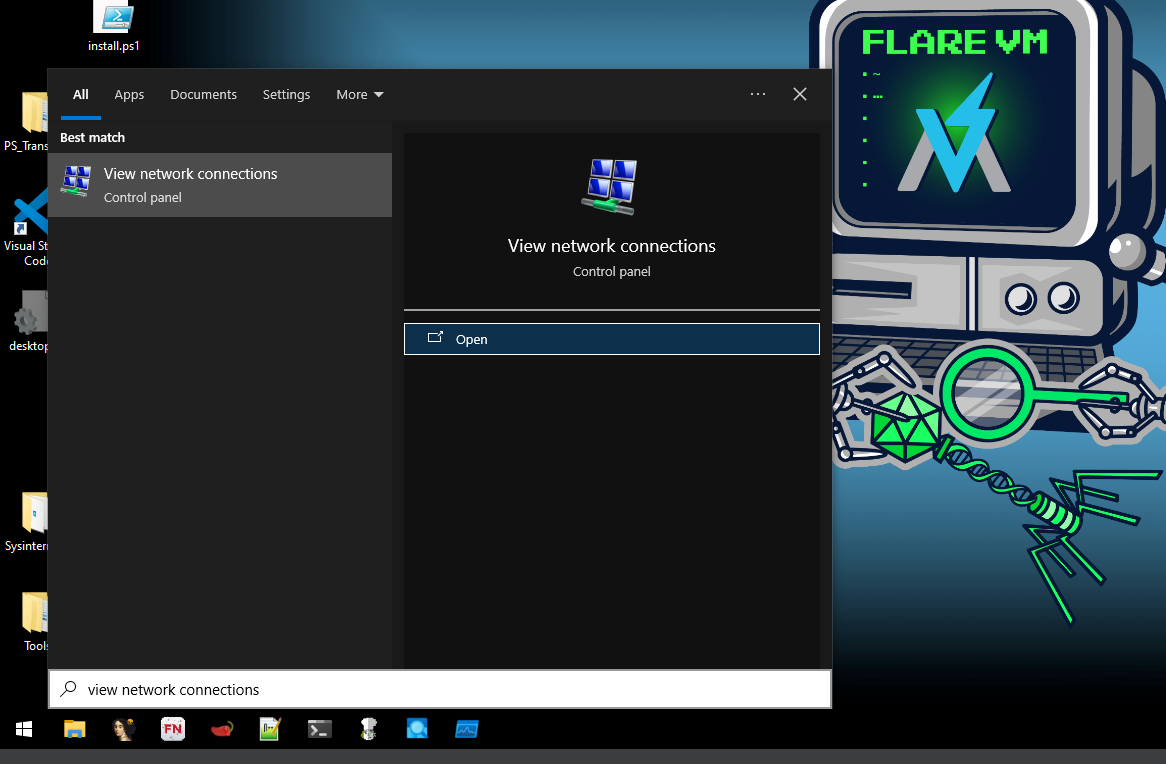
Open View network connections in the control panel so we can set up the DNS properties to reach out to the REMNux machine.
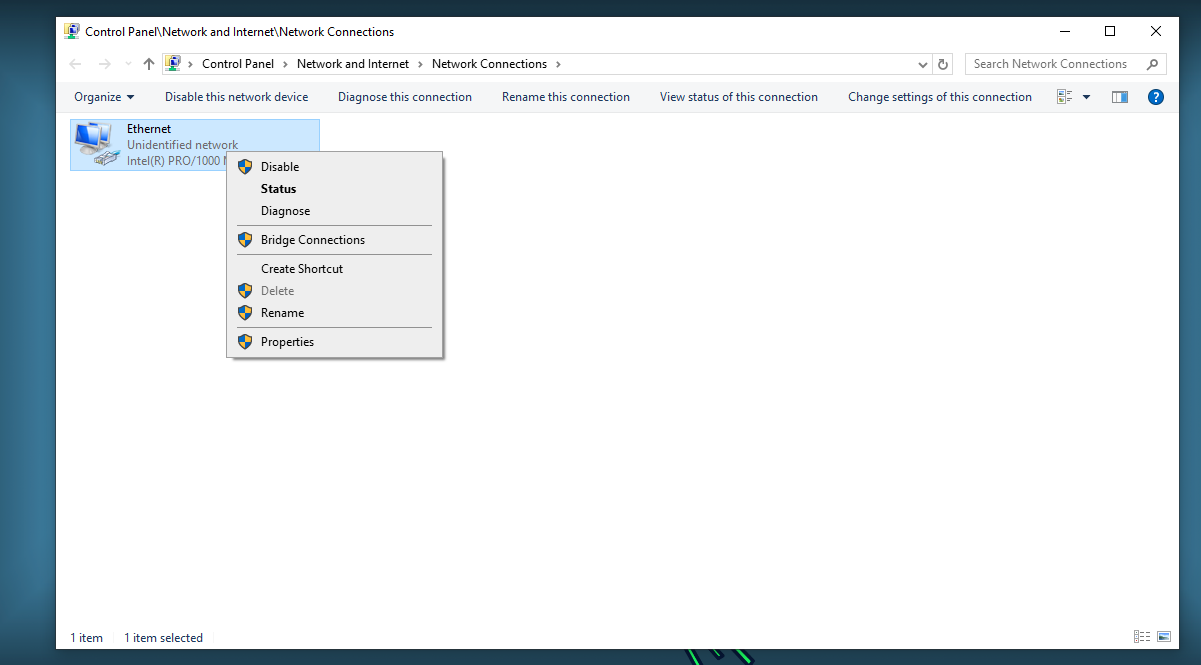
Right-click the Ethernet connection and click Properties.
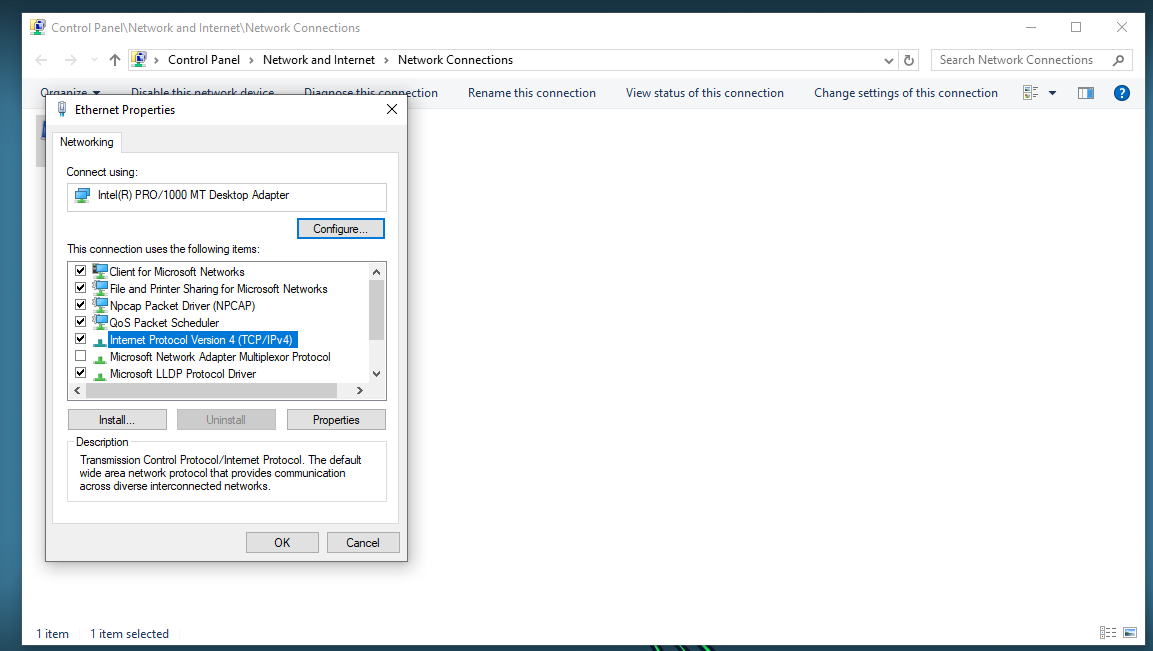
Highlight IPv4 and click Properties.
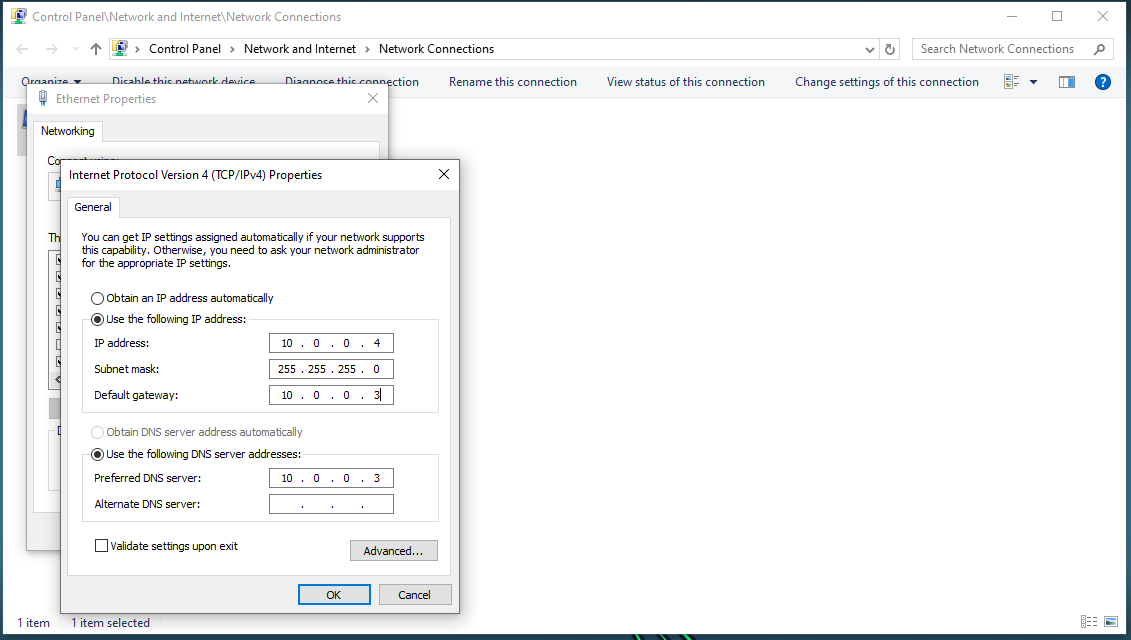
Choose the radio button for Use the following IP address:. Set the IP address and subnet mask. Set the Default gateway: to the REMNux IP address. Select the radio button for Use the following DNS server addresses:. Set the preferred DNS to the REMNux box.
Test Network Connections
From the REMNux box, ping the IP address for the Windows machine. This should succeed. Ping Google and 8.8.8.8. This should fail to ensure that we are fully isolated.
remnux@remnux:~$ ping -c 1 10.0.0.4
PING 10.0.0.4 (10.0.0.4) 56(84) bytes of data.
64 bytes from 10.0.0.4: icmp_seq=1 ttl=128 time=0.360 ms

--- 10.0.0.4 ping statistics ---
1 packets transmitted, 1 received, 0% packet loss, time 0ms
rtt min/avg/max/mdev = 0.360/0.360/0.360/0.000 ms
remnux@remnux:~$ ping -c 1 www.google.com
ping: www.google.com: Temporary failure in name resolution
remnux@remnux:~$ ping -c 1 8.8.8.8
ping: connect: Network is unreachable
From the Windows box, ping the IP address for the REMNux machine. This should succeed. Ping Google and 8.8.8.8. This should fail to ensure that we are fully isolated.
C:\Users\win
λ ping -n 1 10.0.0.3

Pinging 10.0.0.3 with 32 bytes of data:
Reply from 10.0.0.3: bytes=32 time<1ms TTL=64

Ping statistics for 10.0.0.3:
    Packets: Sent = 1, Received = 1, Lost = 0 (0% loss),
Approximate round trip times in milli-seconds:
    Minimum = 0ms, Maximum = 0ms, Average = 0ms

C:\Users\win
λ ping -n 1 www.google.com
Ping request could not find host www.google.com. Please check the name and try again.

C:\Users\win
λ ping -n 1 8.8.8.8

Pinging 8.8.8.8 with 32 bytes of data:
Request timed out.

Ping statistics for 8.8.8.8:
    Packets: Sent = 1, Received = 0, Lost = 1 (100% loss),
INETSim
On the REMNux machine, make a copy of inetsim.conf in case anything goes wrong.
remnux@remnux:~$ sudo cp /etc/inetsim/inetsim.conf /etc/inetsim/inetsim.conf.orig
In the config file, uncomment the start_service dns option so the machine can act as DNS.
# ident, syslog, dummy_tcp, dummy_udp, smtps, pop3s,
# ftps, irc, https
#
start_service dns
start_service http
start_service https
start_service smtp
start_service smtps
start_service pop3
start_service pop3s
start_service ftp
start_service ftps
Uncomment the service_bind_address and set the IP address to accept any connection with 0.0.0.0.
#########################################
# service_bind_address
#
# IP address to bind services to
#
# Syntax: service_bind_address <IP address>
#
# Default: 127.0.0.1
#
service_bind_address    0.0.0.0
Uncomment the dns_default_ip and set the IP address of the REMNux.
#########################################
# dns_default_ip
#
# Default IP address to return with DNS replies
#
# Syntax: dns_default_ip <IP address>
#
# Default: 127.0.0.1
#
dns_default_ip          10.0.0.3
Try to run INetSim. Notice there is something already running on port 53. Run lsof to identify services running on port 53.
remnux@remnux:~$ sudo inetsim
INetSim 1.3.2 (2020-05-19) by Matthias Eckert & Thomas Hungenberg
Using log directory:      /var/log/inetsim/
Using data directory:     /var/lib/inetsim/
Using report directory:   /var/log/inetsim/report/
Using configuration file: /etc/inetsim/inetsim.conf
Parsing configuration file.
Configuration file parsed successfully.
=== INetSim main process started (PID 1824) ===
Session ID:     1824
Listening on:   0.0.0.0
Real Date/Time: 2026-01-01 11:42:37
Fake Date/Time: 2026-01-01 11:42:37 (Delta: 0 seconds)
 Forking services...
Couldn't create UDP socket: Address already in use at /usr/share/perl5/INetSim/DNS.pm line 36.
  * dns_53_tcp_udp - started (PID 1828)
  * pop3s_995_tcp - started (PID 1834)
  * ftp_21_tcp - started (PID 1835)
  * pop3_110_tcp - started (PID 1833)
  * smtps_465_tcp - started (PID 1832)
  * ftps_990_tcp - started (PID 1836)
  * smtp_25_tcp - started (PID 1831)
  * http_80_tcp - started (PID 1829)
  * https_443_tcp - started (PID 1830)
 done.
Simulation running.
^C  * ftps_990_tcp - stopped (PID 1836)
  * ftp_21_tcp - stopped (PID 1835)
  * pop3s_995_tcp - stopped (PID 1834)
  * pop3_110_tcp - stopped (PID 1833)
  * smtps_465_tcp - stopped (PID 1832)
  * smtp_25_tcp - stopped (PID 1831)
  * https_443_tcp - stopped (PID 1830)
  * http_80_tcp - stopped (PID 1829)
  * dns_53_tcp_udp - stopped (PID 1828)
Simulation stopped.
=== INetSim main process stopped (PID 1824) ===
.
remnux@remnux:~$ sudo lsof -i :53
COMMAND   PID            USER   FD   TYPE DEVICE SIZE/OFF NODE NAME
systemd-r 347 systemd-resolve   12u  IPv4  16686      0t0  UDP localhost:domain
systemd-r 347 systemd-resolve   13u  IPv4  16687      0t0  TCP localhost:domain (LISTEN)
Ubuntu’s systemd-resolved service runs a DNS stub resolver on port 53, which conflicts with INetSim’s DNS simulation. Stop and disable it.
remnux@remnux:~$ sudo systemctl disable systemd-resolve^C
remnux@remnux:~$ sudo systemctl stop systemd-resolved
remnux@remnux:~$ sudo systemctl disable systemd-resolved
Removed /etc/systemd/system/dbus-org.freedesktop.resolve1.service.
Removed /etc/systemd/system/multi-user.target.wants/systemd-resolved.service.
Run INETSim.
remnux@remnux:~$ sudo inetsim
INetSim 1.3.2 (2020-05-19) by Matthias Eckert & Thomas Hungenberg
Using log directory:      /var/log/inetsim/
Using data directory:     /var/lib/inetsim/
Using report directory:   /var/log/inetsim/report/
Using configuration file: /etc/inetsim/inetsim.conf
Parsing configuration file.
Configuration file parsed successfully.
=== INetSim main process started (PID 1905) ===
Session ID:     1905
Listening on:   0.0.0.0
Real Date/Time: 2026-01-01 11:49:58
Fake Date/Time: 2026-01-01 11:49:58 (Delta: 0 seconds)
 Forking services...
  * dns_53_tcp_udp - started (PID 1909)
  * smtps_465_tcp - started (PID 1913)
  * https_443_tcp - started (PID 1911)
  * smtp_25_tcp - started (PID 1912)
  * pop3s_995_tcp - started (PID 1915)
  * ftp_21_tcp - started (PID 1916)
  * ftps_990_tcp - started (PID 1917)
  * pop3_110_tcp - started (PID 1914)
  * http_80_tcp - started (PID 1910)
 done.
Simulation running.
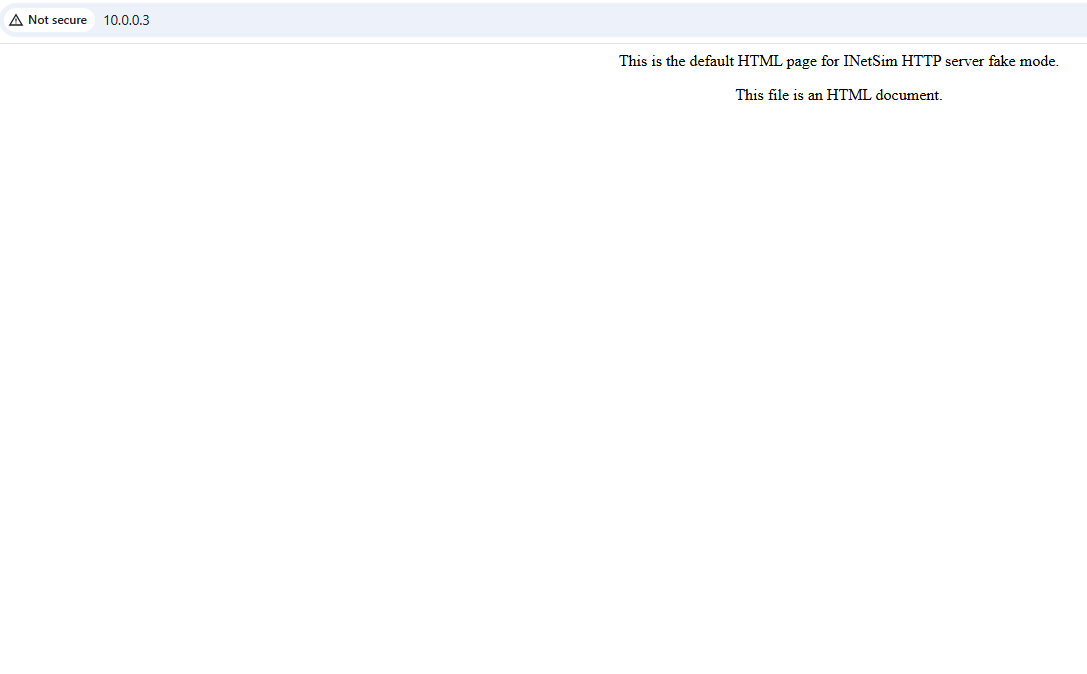
On the Windows machine, check the INETSim to ensure that it is serving.
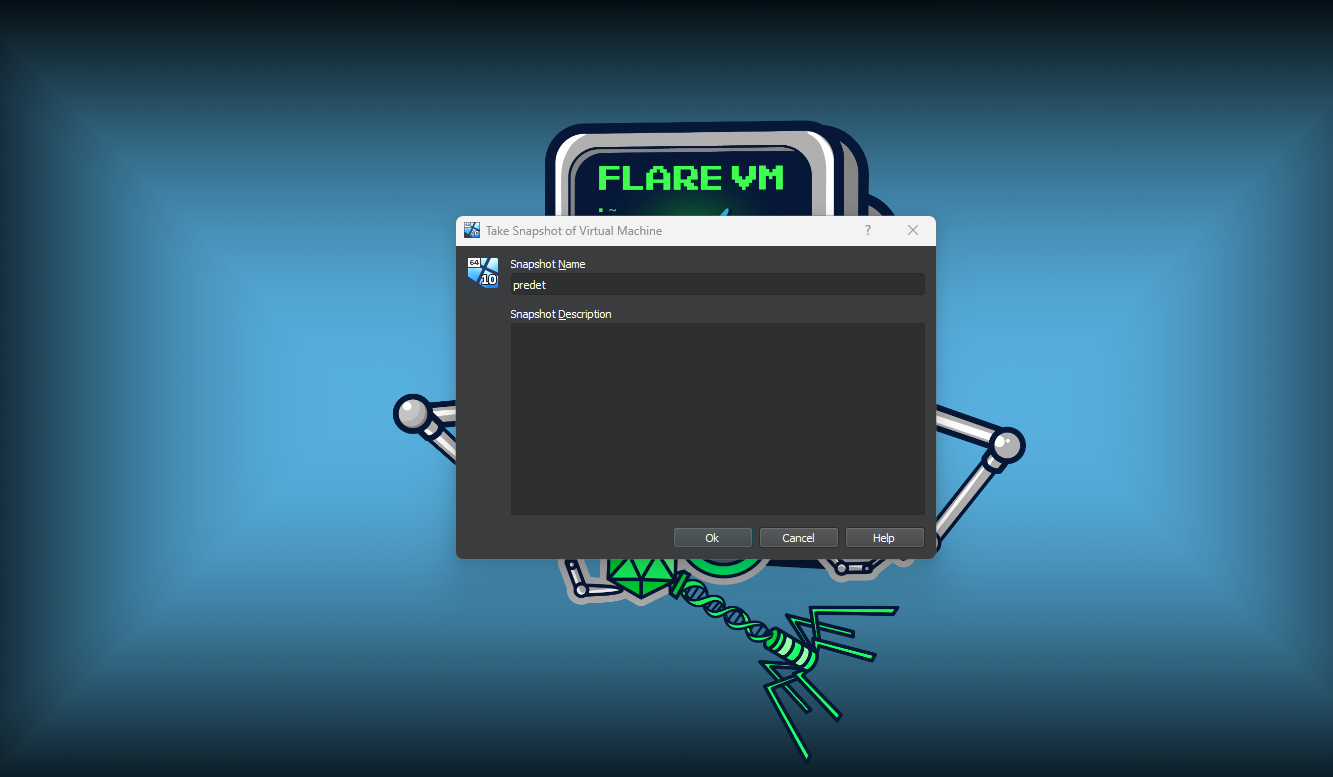
On the Windows machine, create one more predetonation snapshot.
Now, let’s get this party started with Bang!