BoxBuddy
Create a BoxBuddy WebApp.

Introduction
There you are at at 3:00am…again. Just one more scan and then I will go to bed. I am sure that I won’t be too tired at work tomorrow. And I will feel great if this is the scan that cracks the whole box wide open. Enumerate, enumerate, and if you are stuck, enumerate some more. I have an entire boxes section if you want more guidance on box methodology. But this scenario kind of illustrates the problem that I designed BoxBuddy to solve. I would say to improve sleep but let’s be honest, you would be working on something else. Don’t lie.
The Problem
If you get stuck on HTB box, where do you go for help? There are always those dodgy websites that give full write-ups despite it being against ToS. Great. Didn’t learn anything and cheated. There are the form posts that don’t seem to full appreciate my definition of the word nudge. I wanted something a little more mellow. So, it was with this in mind that I conceived the idea of BoxBuddy. A context aware CTF assistant that can give you nudges specific to your box’s context without spoiling the fun of learn (read: suffering).
The Stack
- SQLite3 database
- Python backend
- SQL Alchemy ORM
- FastAPI
- React front-end
- Vite server
My Role
I served as the tool architect, prompt engineer, and repository maintainer for this project. That is to say I came up with how the backend should act, the model <-> Controller interaction to allow for things like LLM switching, what should be displayed on the front-end, and what should be persisted. I developed the prompt to make sure that it was inclusive enough to get app that I wanted from Claude. I also reviewed the code before integrating it into the project and pushed back against anything that I felt was not quite right. Claude AI generated the code based off the architecture I supplied. I had it generate code feature by feature and source file by source file. This was so I could incrementally add the code so I could understand. This way if something if something goes wrong I can quickly act instead of drowning in a completed codebase I don’t understand. Groq serves as the app LLM with its generous free tier.
Current Status
MVP: Refining recommendation algorithms.
The Process
Walkthrough
The Landing Page
The landing page is where we can create, read, update, and delete a box.
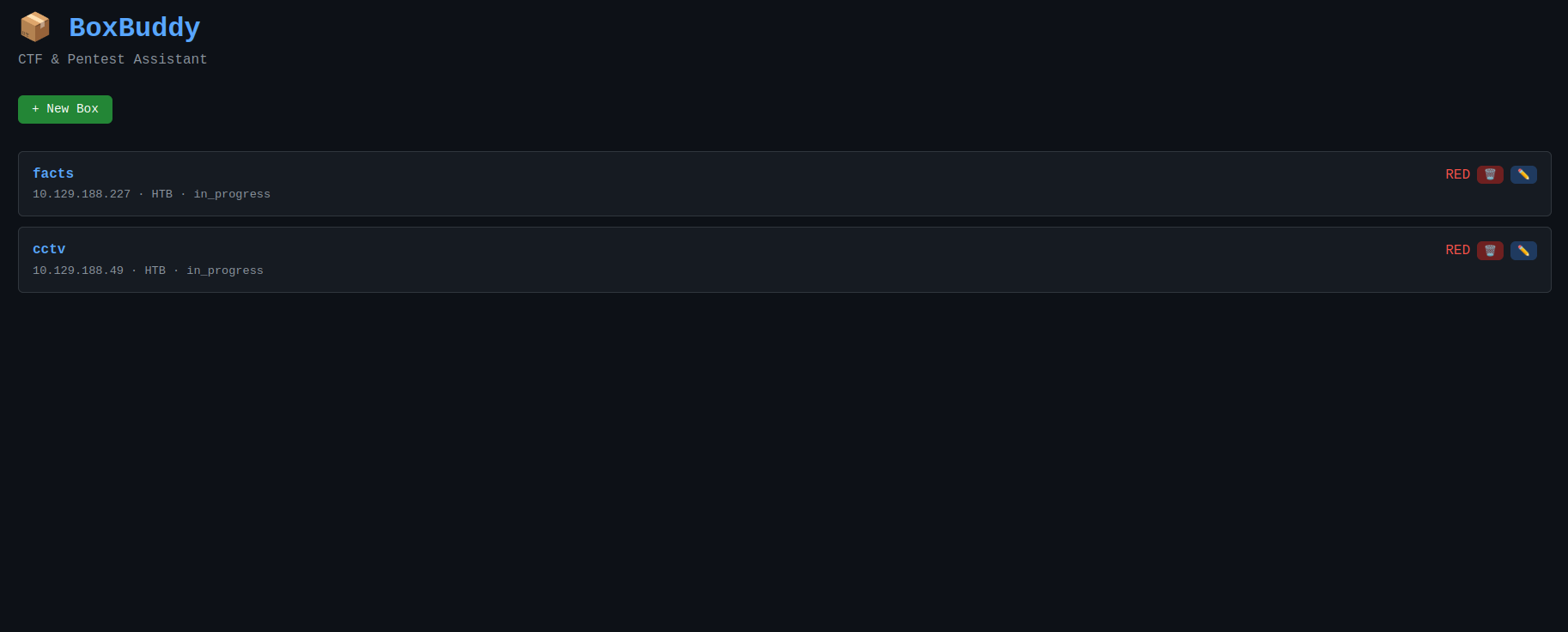
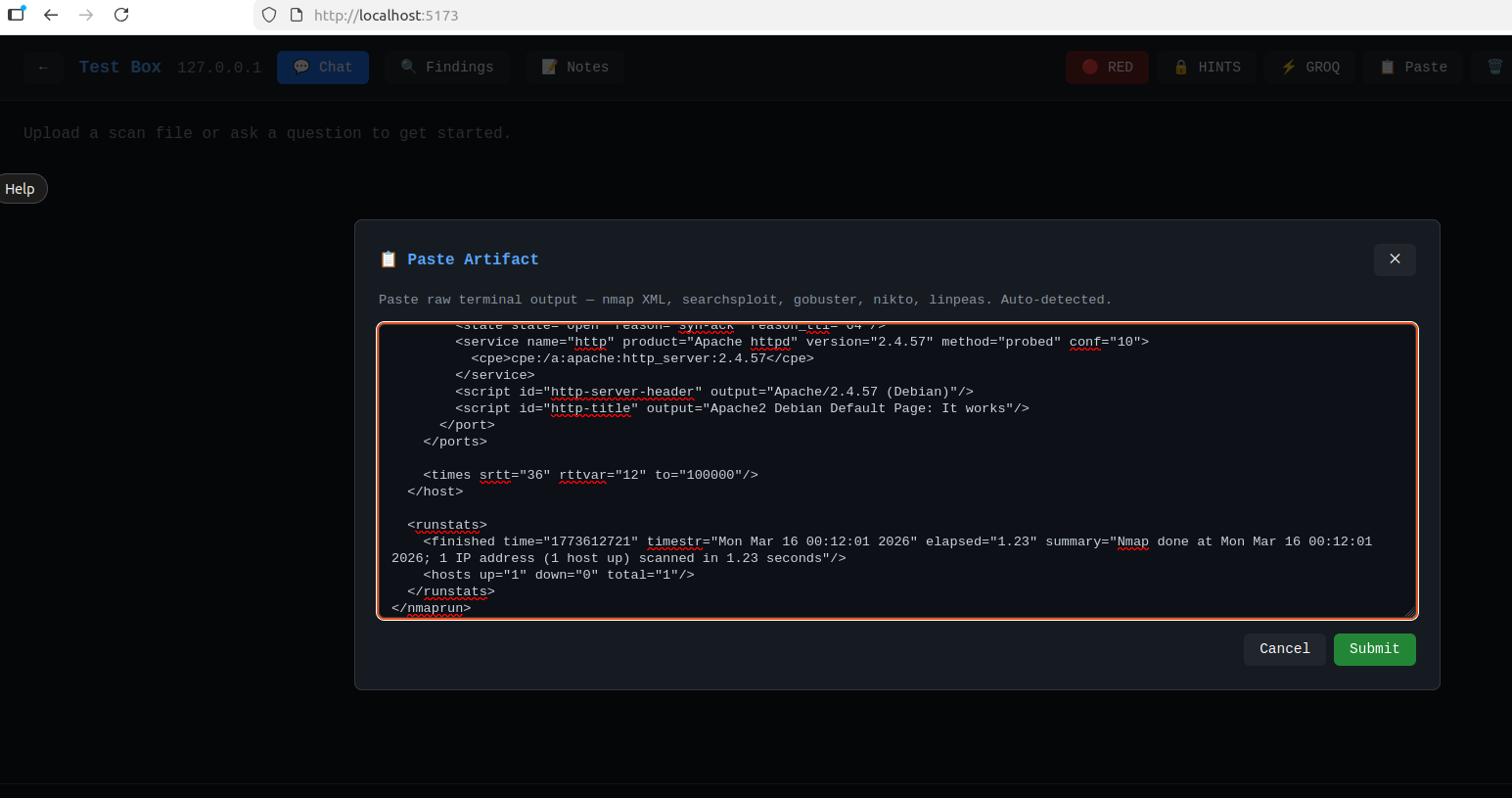
Once you choose a box, you can paste the results of your scans directly from your terminal into the system.
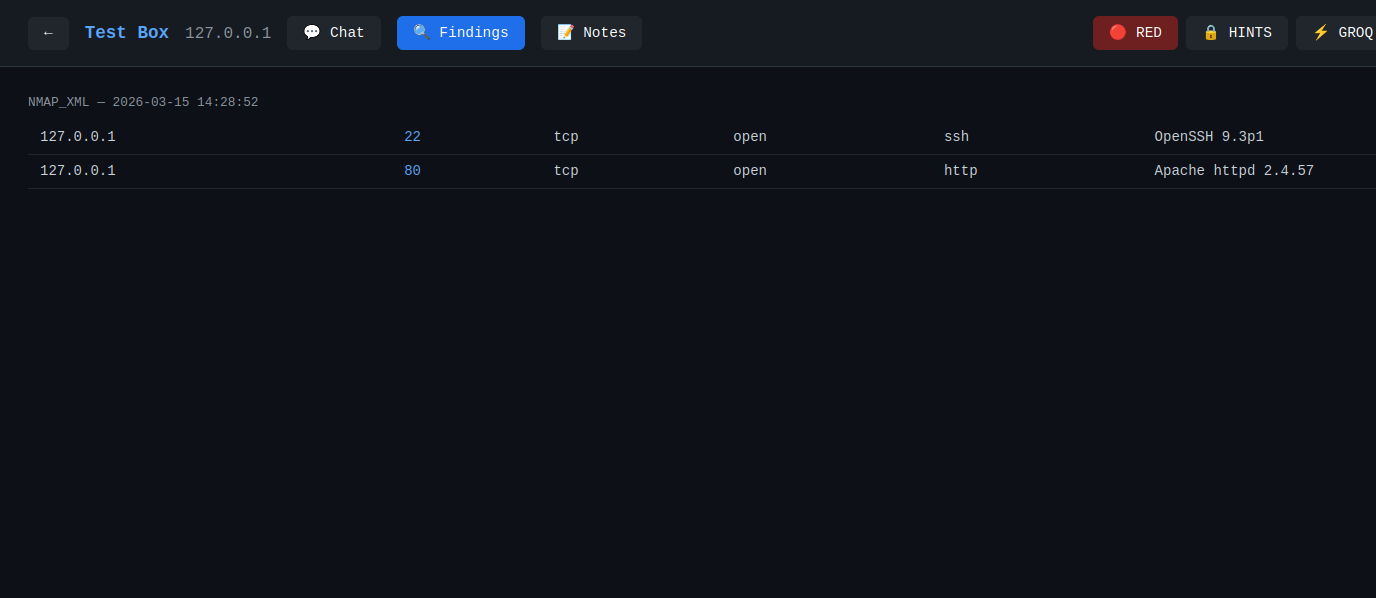
You can click on ‘Findings’ to view all of you parsed scan uploads.
The Notes button is where you can enter data that can’t be parsed. Credentials, enumerated files, etc.
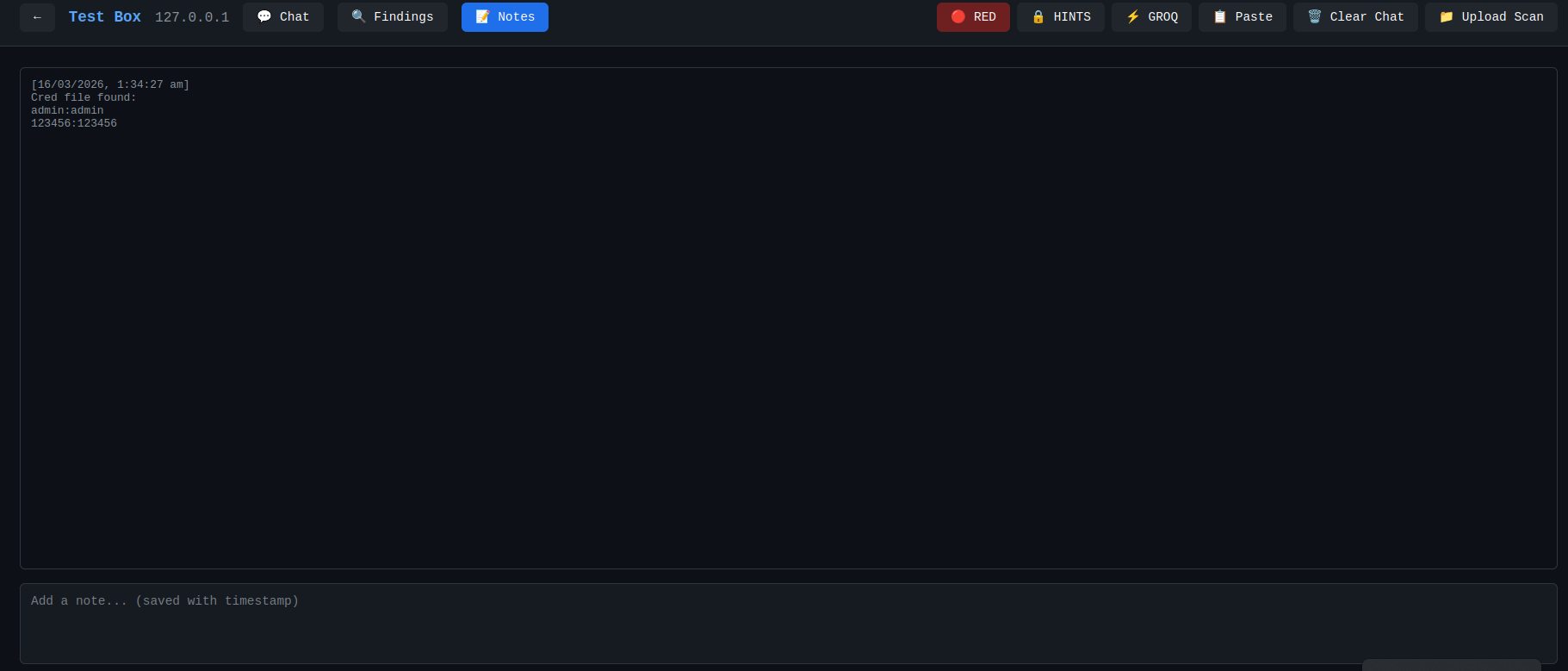
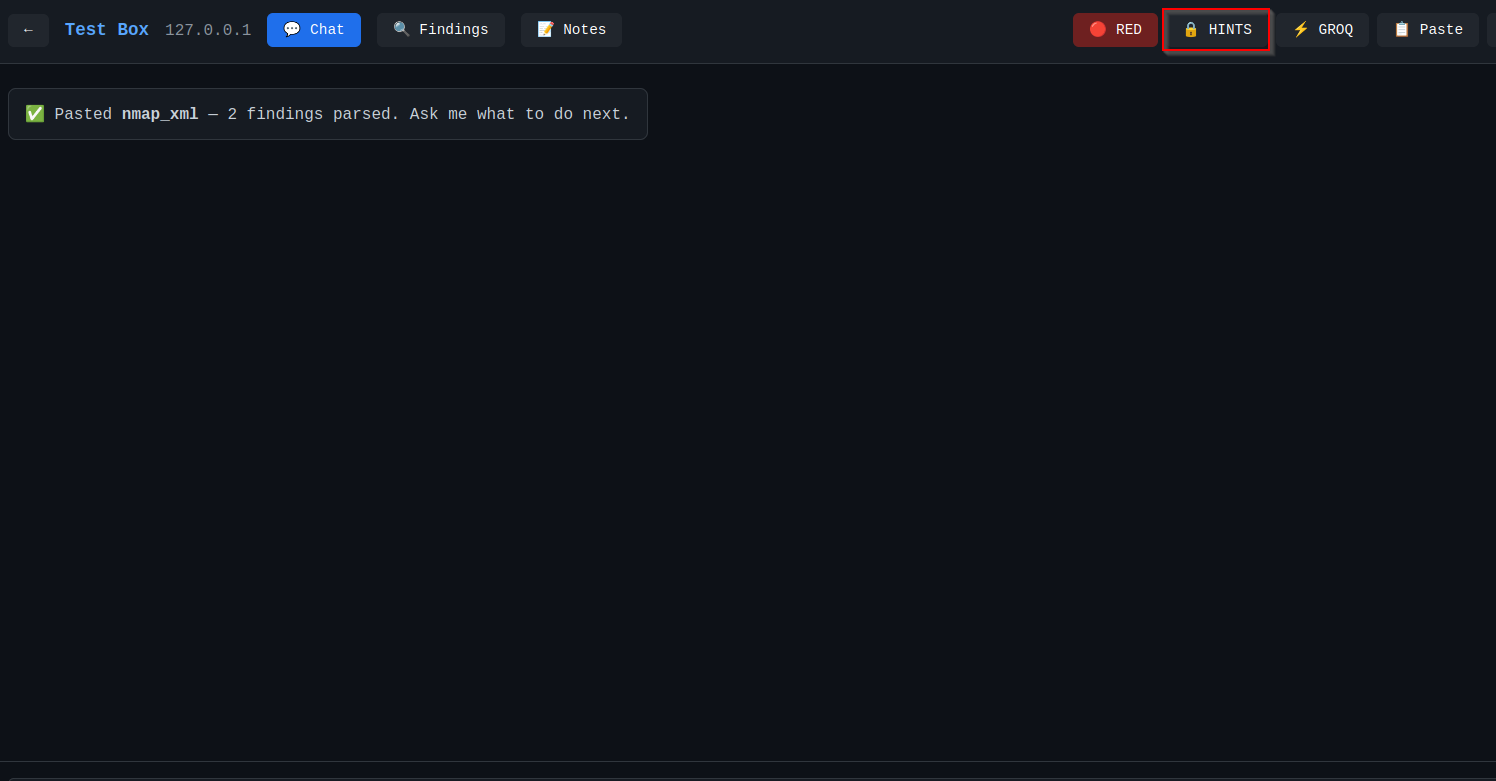
There is also a toggle button that allows you to switch between gentle nudges and try this command. This is how I answered the problem statement as stated earlier.
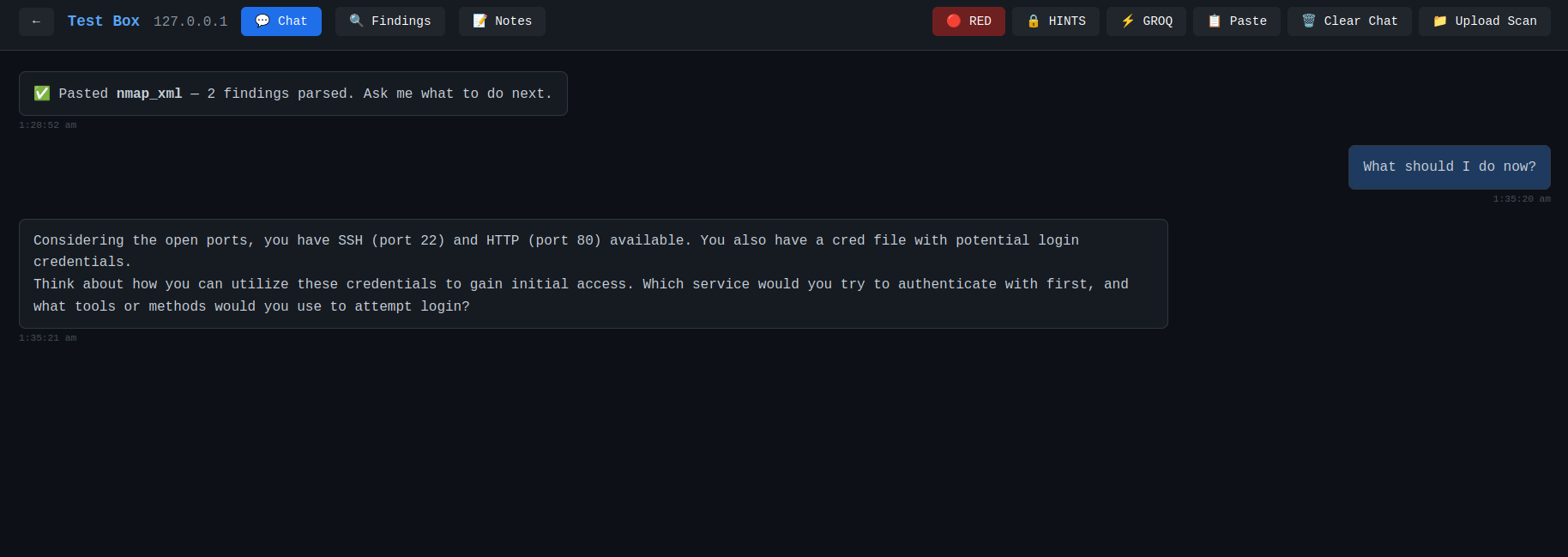
Finally, the coup de grâce is the chat with the LLM that now has all our information and give us tailored nudges without spoiling the cake.
The Code
Backend
The first thing that we have to do is initialize the database. Create the connection and cursor and use that cursor to execute your create table statements.
import sqlite3
from pathlib import Path

DB_PATH = Path(__file__).parent / "boxbuddy.db"

def get_connection():
    conn = sqlite3.connect(DB_PATH)
    conn.row_factory = sqlite3.Row
    return conn

def init_db():
    conn = get_connection()
    cursor = conn.cursor()

    cursor.execute("""
        CREATE TABLE IF NOT EXISTS boxes (
            id INTEGER PRIMARY KEY AUTOINCREMENT,
            name TEXT NOT NULL,
            ip TEXT,
            platform TEXT,
            mode TEXT DEFAULT 'red',
            notes TEXT,
            status TEXT DEFAULT 'in_progress',
            created_at TEXT DEFAULT (datetime('now'))
        )
    """)

<snip>
The next task we are going to accomplish are creating our models to model the tables that were just created in the build script.
import sqlite3
from pathlib import Path

DB_PATH = Path(__file__).parent / "boxbuddy.db"

def get_connection():
    conn = sqlite3.connect(DB_PATH)
    conn.row_factory = sqlite3.Row
    return conn

def init_db():
    conn = get_connection()
    cursor = conn.cursor()

    cursor.execute("""
        CREATE TABLE IF NOT EXISTS boxes (
            id INTEGER PRIMARY KEY AUTOINCREMENT,
            name TEXT NOT NULL,
            ip TEXT,
            platform TEXT,
            mode TEXT DEFAULT 'red',
            notes TEXT,
            status TEXT DEFAULT 'in_progress',
            created_at TEXT DEFAULT (datetime('now'))
        )
    """)

<snip>
Then, we are going to create our APIs that allow interaction with the database underneath. This should be the point where we can start up uvicorn and curl the health api endpoint.
<snip>

@app.get("/health")
def health():
    return {"status": "ok"}

<snip>
After this, we are going to have to build our parsers. A lot of tools have output to help assist with that. Nmap, as in this example, has an XML output that we can build an expected parser for to persist to our database.
<snip>

@app.get("/health")
def health():
    return {"status": "ok"}

<snip>
To communicate with the LLM API we are going to use httpx to send our requests. So let’s create a dictionary/map containing the providers.
<snip>

@app.get("/health")
def health():
    return {"status": "ok"}

<snip>
To get proper responses we have to get the context for the box every response, in our code, because the API doesn’t have persistence between requests.
<snip>

def build_system_prompt(box: dict, findings: list, messages: list, mode: str, explicit: bool) -> str:
    findings_summary = summarise_findings(findings)

    notes = box.get('notes') or ''
    attempted = extract_attempted_actions(messages, notes)

<snip>
To be able to send the context with every request, we have to build the context. This includes all scans, report outputs, and things we already tried. In this context findings are scan output.
<snip>

def summarise_findings(findings: list) -> str:
    if not findings:
        return "No findings yet."

    # Cap at 50 findings to avoid context overflow
    truncated = findings[:50]
    truncated_note = f"\n[{len(findings) - 50} additional findings truncated]" if len(findings) > 50 else ""

<snip>
And then, we send the query to the AI.
<snip>

async def query_ai(
    provider: str,
    api_key: str,
    box: dict,
    findings: list,
    messages: list,
    mode: str = "red",
    explicit: bool = False,
) -> dict:

    if provider not in PROVIDERS:
        return f"Unknown provider: {provider}. Supported: {list(PROVIDERS.keys())}"

    config = PROVIDERS[provider]
    system_prompt = build_system_prompt(box, findings, messages, mode, explicit)

<snip>
Frontend
There is the code for the landing page that displays the CRUD selector for the boxes.
import { useState, useEffect, useRef } from 'react'
import axios from 'axios'
import ReactMarkdown from 'react-markdown'

const API = '/api'

export default function App() {
  const [boxes, setBoxes] = useState([])
  const [activeBox, setActiveBox] = useState(null)
  const [view, setView] = useState('boxes') // 'boxes' | 'chat'
  const [editingBox, setEditingBox] = useState(null)

  useEffect(() => {
    fetchBoxes()
  }, [])
We also have our ChatView, which provides the actual assitant to help us crush boxes.
import { useState, useEffect, useRef } from 'react'
import axios from 'axios'
import ReactMarkdown from 'react-markdown'

const API = '/api'

export default function App() {
  const [boxes, setBoxes] = useState([])
  const [activeBox, setActiveBox] = useState(null)
  const [view, setView] = useState('boxes') // 'boxes' | 'chat'
  const [editingBox, setEditingBox] = useState(null)

  useEffect(() => {
    fetchBoxes()
  }, [])
Then, we are going to need the React version of the main method to load that App file up and render it in index.
import { StrictMode } from 'react'
import { createRoot } from 'react-dom/client'
import './index.css'
import App from './App.jsx'

createRoot(document.getElementById('root')).render(
  <StrictMode>
    <App />
  </StrictMode>,
)
Of course, last but also probably least, every website begins with index.
<!doctype html>
<html lang="en">
  <head>
    <meta charset="UTF-8" />
    <link rel="icon" type="image/svg+xml" href="/vite.svg" />
    <meta name="viewport" content="width=device-width, initial-scale=1.0" />
    <title>BoxBuddy</title>
  </head>
  <body>
    <div id="root"></div>
    <script type="module" src="/src/main.jsx"></script>
  </body>
</html>
And with that you the thumbs up to tear through the boxes!